%%{init: {'theme': 'neutral', 'themeVariables': { 'fontFamily': 'monospace', "fontSize":"14px"}}}%%
flowchart TB
Edit(["<strong>i. Edit</strong><br/>save a file"])
What{"What<br/>changed?"}
subgraph Respond["<strong>ii. Respond to the change</strong>"]
subgraph NoAction["<strong>No action</strong>"]
Code("nothing to do<br/>(editable install)")
Reload("<code>--reload</code><br/>restarts the app")
end
subgraph Sync["<strong>Sync</strong>"]
Deps("<code>uv add</code> or<br/><code>uv remove</code>")
UvSync("<code>uv sync</code><br/>(or the next<br/><code>uv run</code>)")
end
subgraph Restart["<strong>Restart</strong>"]
Console("console: restart or<br/><code>importlib.reload()</code>")
App("app: Ctrl + C,<br/>then run it again")
end
end
Check(["<strong>iii. Check</strong><br/>browser or<br/><code>uv run pytest</code>"])
Edit --> What
What -->|"<code>.py</code> file in<br/><code>src/pyap/</code>"| Code
What -->|"dependency"| Deps
What -->|"<code>pyproject.toml</code><br/>or <code>uv.lock</code>"| UvSync
What -->|"<code>movies.csv</code>"| App
Code --> Reload
Code -.->|"in a console"| Console
Deps -.->|"already<br/>imported"| Console
UvSync -.->|"app<br/>running"| App
Reload --> Check
Deps --> Check
UvSync --> Check
Console --> Check
App --> Check
Check -->|"next change"| Edit
classDef noStyle fill:#2d3748,stroke:#48bb78,color:#fff
classDef uvStyle fill:#744210,stroke:#f6ad55,color:#fff
classDef restartStyle fill:#553c9a,stroke:#b794f4,color:#fff
class Code,Reload noStyle
class Deps,UvSync uvStyle
class Console,App restartStyle
4 Development Workflow
In the Python Packages chapter, pyap became an installable package, and uv sync installed it into .venv/ in editable mode. This chapter covers what happens after that: the day to day loop of editing code, running the app, and checking the result. Most passes through this loop need no special commands at all. I’ve found the harder part (especially coming from R) is knowing which changes do need one, and which command fixes them.
We’ll use the 04_dev branch for the whole chapter. It builds on 03.3_create-package and adds one lasting change (a light grid on the scatter plot, which we’ll walk through below). The other edits shown are illustrative, so we’ll undo each of those before moving on. If you’re starting fresh, check out the branch and sync the environment:
git checkout 04_dev
uv sync
4.1 Running commands in the environment
Every step in the loop (launching the app, opening a Python console, running tests) needs to use the Python inside the .venv/ folder. There are two ways to make sure this happens: 1) prefix each command with uv run, or 2) activate the environment once per terminal session (with source .venv/bin/activate).
4.1.1 With uv run
uv run runs a command inside the project environment without activating it. We’ve used it since the 03.2_uv branch:
uv run shiny run --reload --launch-browser src/pyap/app.pyBefore running the command, uv run checks that uv.lock matches pyproject.toml and that .venv/ matches uv.lock, and it updates whichever one is out of date.
I tend to reach for uv run first because it’s hard to run code against a stale environment by accident.
The same prefix works for any command installed in the environment. The first line below opens a Python console, and the second confirms Python is reading pyap from our source folder:
uv run python
Python 3.12.15 (main, Oct  3 2026, 01:03:07) [Clang 22.1.3 ] on linux
Type "help", "copyright", "credits" or "license" for more information.
>>>
uv run python -c "import pyap; print(pyap.__file__)"
/home/path/to/pyap/src/pyap/__init__.py
4.1.2 With an activated .venv/
We activated .venv/ in the Shiny for Python chapter, and activation still works in a uv project.
Activating puts the environment’s bin/ folder at the front of the terminal’s PATH, so python, shiny, and (later) pytest resolve to the copies in .venv/:
source .venv/bin/activateshiny run --reload --launch-browser src/pyap/app.pyRunning deactivate returns the terminal to its previous state.
The tradeoff is that an activated environment doesn’t check anything. shiny run uses whatever is installed in .venv/ at that moment, so after a change to pyproject.toml or uv.lock, we have to run uv sync ourselves.1
4.1.3 Which should you use?
It’s not necessary to commit to one approach, but it helps to know what each one guarantees. I’ve summarized some of the differences in the table below:
uv run |
Activated .venv/ |
|
|---|---|---|
| Syncs before running | Yes | No (run uv sync yourself) |
| Command | uv run shiny run ... |
shiny run ... |
| Scope | One command | The current terminal session |
| Works in scripts and CI | Yes | Only after activating |
I’ll be using uv run in most of the commands in this book, so the examples work in any terminal. Activating is fine for a long interactive session, as long as you remember the uv sync step. Positron activates .venv/ in new terminals for us (we’ll cover this below), so both styles end up available.
4.2 The edit, run, check loop
The diagram below shows the ‘edit, run, check’ loop. Each pass starts with an edit, and the kind of file we changed decides what (if anything) has to happen before we can check the result. Most passes take the No action path. Edits to Python code in src/pyap/ need nothing beyond saving the file, because the editable install means .venv/ already points at our source files. The Sync path covers changes to what’s installed in .venv/, and the Restart path covers anything a running Python process has already loaded.
The dotted arrows mark the cases where one path leads into another. The sections below cover each path in turn.
4.3 Changes that need ‘No action’
Editing a module in src/pyap/ is the most common change in the loop, and it’s also the simplest. An editable install puts a pointer to our src/ folder into .venv/ instead of a copy of the code (the Python Packages chapter covers the setup). The next time Python imports pyap, it reads our current files.
The pointer is to the folder, not to individual files, so new modules work the same way. If we added a src/pyap/data.py module (as we did in the Whole Game chapter), from pyap.data import ... would work without reinstalling anything.
4.3.1 Reloading the app
The editable install only matters the next time pyap is imported.
--reloadis what makes the next import happen right awayshiny run --reloadwatches the folder that holdsapp.pyand restarts the app whenever a watched file changes
Because app.py and utils.py both live in src/pyap/, saving either one triggers a restart, and the browser tab refreshes itself when the new app is ready.
We can see this with a small edit to scatter_plot() in src/pyap/utils.py. With the app running, we’ll simulate adding a grid to the plot just before the call to plt.tight_layout().
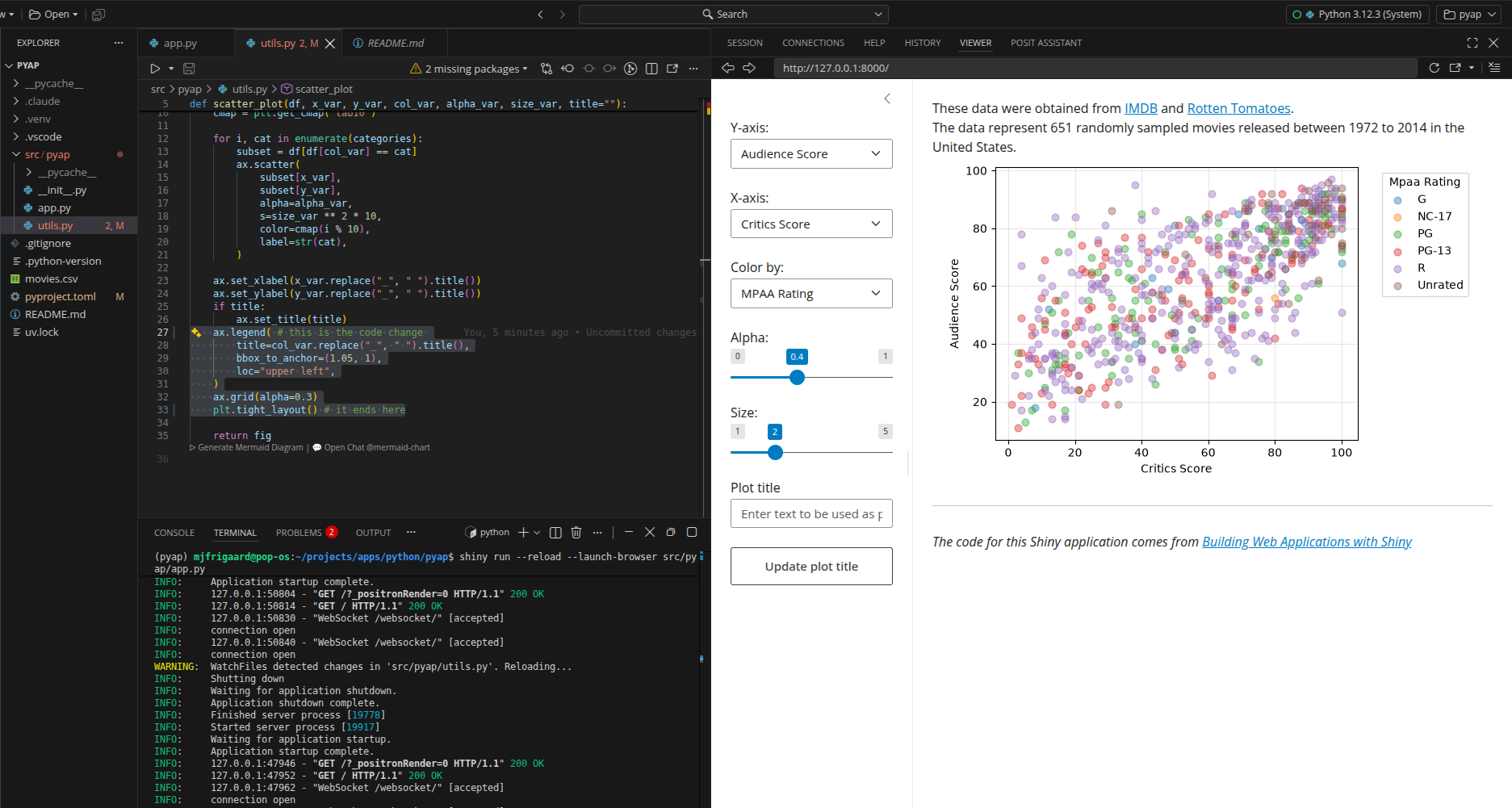
    ax.legend(
        title=col_var.replace("_", " ").title(),
        bbox_to_anchor=(1.05, 1),
        loc="upper left",
    )
    ax.grid(alpha=0.3)
    plt.tight_layout()
The lines above are already in the 04_dev branch, so if we delete it, save the file, we will watch how the reload happens:
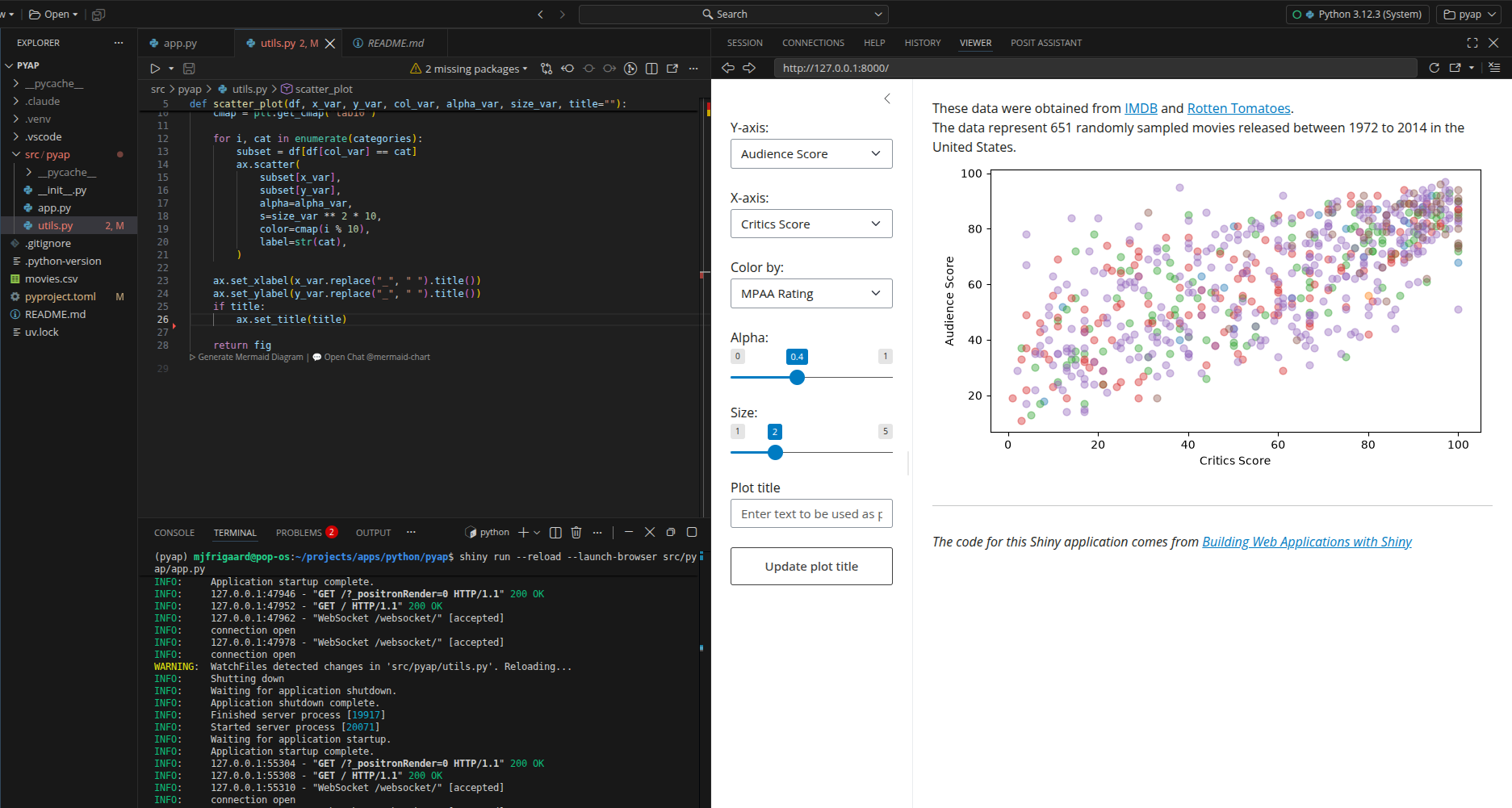
After we saved the file, the terminal showed the app restarting, and the scatter plot in the browser is redrawn with light grid lines.
We didn’t stop the app, reinstall pyap, or refresh the page. This is the one edit in the chapter we keep, and it’s committed on the 04_dev branch.
Each reload restarts the app’s Python process, so every session starts over and any inputs we changed go back to their default values. For an app the size of pyap, this takes a second or two.
4.4 Changes that need a sync
A sync is needed when a change affects what’s installed in .venv/, rather than the code .venv/ points to. In practice, that means changes to pyproject.toml and uv.lock.
4.4.1 Adding and removing dependencies
uv add and uv remove cover most of these changes. Each one updates pyproject.toml, re-resolves uv.lock, and syncs .venv/ in a single step, so there’s nothing left for us to run afterwards. For example, the commands below add polars (from the callout in the Shiny for Python chapter) and then remove it again:
uv add polars
Resolved 47 packages in 418ms
      Built pyap @ file:///path/to/pyap/
Prepared 1 package in 10ms
Uninstalled 1 package in 0.86ms
Installed 3 packages in 6ms
 + polars==2.0.0
 + polars-runtime-32==2.0.0
 ~ pyap==0.1.0 (from file:///path/to/pyap)
After uv add, polars appears in the dependencies list with a lower bound, and uv run python -c "import polars" succeeds.
uv remove takes it back out of all three places, so uv.lock is back where it started, and pyproject.toml only differs by whitespace (uv may add a trailing newline when it rewrites the file).
uv remove polars
Resolved 45 packages in 15ms
      Built pyap @ file:///path/to/pyap
Prepared 1 package in 3ms
Uninstalled 3 packages in 3ms
Installed 1 package in 0.53ms
 - polars==2.0.0
 - polars-runtime-32==2.0.0
 ~ pyap==0.1.0 (from file:///path/to/pyap)
Development tools go in the dev dependency group with --dev, as pytest did in the Whole Game chapter. The Dependencies chapter covers version constraints, groups, and upgrades.
4.4.2 Editing pyproject.toml by hand
Editing pyproject.toml directly (instead of with uv add) leaves uv.lock and .venv/ behind until something syncs them. uv run catches up on the next command, but an activated environment won’t.
The package version is a good example, because Python reads it from metadata written at install time, not from pyproject.toml. With the environment activated, we can print the installed version with importlib.metadata:
source .venv/bin/activatepython -c "from importlib.metadata import version; print(version('pyap'))"
0.1.0
Next, we’ll make another illustrative edit and change version = "0.1.0" to version = "0.1.1" in pyproject.toml.
[project]
name = "pyap"
version = "0.1.1"
description = "A Shiny for Python app-package"
readme = "README.md"
authors = [
{ name = "Martin Frigaard" }
]
requires-python = ">=3.12"
dependencies = [
"matplotlib>=3.8.0",
"numpy>=1.26.0",
"pandas>=2.1.0",
"shiny>=1.2.0",
]
[build-system]
requires = ["uv_build>=0.12.23,<0.13.0"]
build-backend = "uv_build"- 1
- Change from “0.1.0” to “0.1.1”
Running the same command still prints 0.1.0. The editable install points at our code, but the package metadata is a snapshot from the last sync. uv sync rebuilds it:
uv sync
Resolved 45 packages in 522ms
      Built pyap @ file:///path/to/pyap
Prepared 1 package in 9ms
Uninstalled 1 package in 0.69ms
Installed 1 package in 0.80ms
 - pyap==0.1.0 (from file:///path/to/pyap)
 + pyap==0.1.1 (from file:///path/to/pyap)
python -c "from importlib.metadata import version; print(version('pyap'))"
0.1.1
uv run python -c "..." would have printed 0.1.1 without the explicit uv sync, because uv run syncs first. We’ll undo the edit (along with the lockfile change the sync made) and sync again:
git restore pyproject.toml uv.lockuv sync
Resolved 45 packages in 1ms
      Built pyap @ file:///path/to/pyap
Prepared 1 package in 4ms
Uninstalled 1 package in 0.25ms
Installed 1 package in 0.79ms
 - pyap==0.1.1 (from file:///path/to/pyap)
 + pyap==0.1.0 (from file:///path/to/pyap)
The same rule applies to the rest of [project] (such as requires-python, dependencies, and the [project.scripts] commands we’ll add in the Launch chapter), and to the [build-system] table. All of them are read when the package is installed, so a change only takes effect after a sync.
4.4.3 Switching branches
Each pyap branch carries its own pyproject.toml and uv.lock, but .venv/ isn’t tracked by Git, so it stays put when we switch branches. After a git checkout, a git pull, or a fresh clone, uv sync brings .venv/ in line with whatever the branch declares (and the next uv run does the same thing on its own).
4.4.4 uv lock and uv sync
uv sync runs uv lock for us whenever pyproject.toml has changed, so we rarely need uv lock by itself. It’s useful when we want to update the lockfile without touching .venv/, such as confirming that a hand edit to pyproject.toml still resolves:
uv lockThe table below summarizes which command handles each change:
| Change | Command | Updates |
|---|---|---|
Editing code in src/pyap/ |
None | Nothing (editable install) |
| Adding or removing a dependency | uv add or uv remove |
pyproject.toml, uv.lock, and .venv/ |
Editing pyproject.toml by hand |
uv sync |
uv.lock and .venv/ |
| Checking out, pulling, or cloning | uv sync |
.venv/ |
| Updating only the lockfile | uv lock |
uv.lock |
4.5 Changes that need a restart
The editable install keeps .venv/ pointed at our current code, and a sync keeps the installed packages current, and neither changes the code the Python processes have already imported. Python imports each module once per process and caches it, so a running process keeps the version it loaded until it’s restarted (or told to reload).
shiny run --reload handles this for the app by restarting the process on every save. There are two exceptions to this: commands in the Python console, and basically anything the app reads only when it starts.
4.5.1 The Python console
The Console is where the editable install feels the least like load_all().2 Suppose we import scatter_plot() into a console (uv run python, started from the project root) to try it outside of the app. Note–the Python session is the one loaded from .venv/bin/python*:
>>> import pandas as pd
>>> from pyap import utils
>>> movies = pd.read_csv("movies.csv")
>>> fig = utils.scatter_plot(movies, "critics_score", "audience_score", "mpaa_rating", 0.4, 3)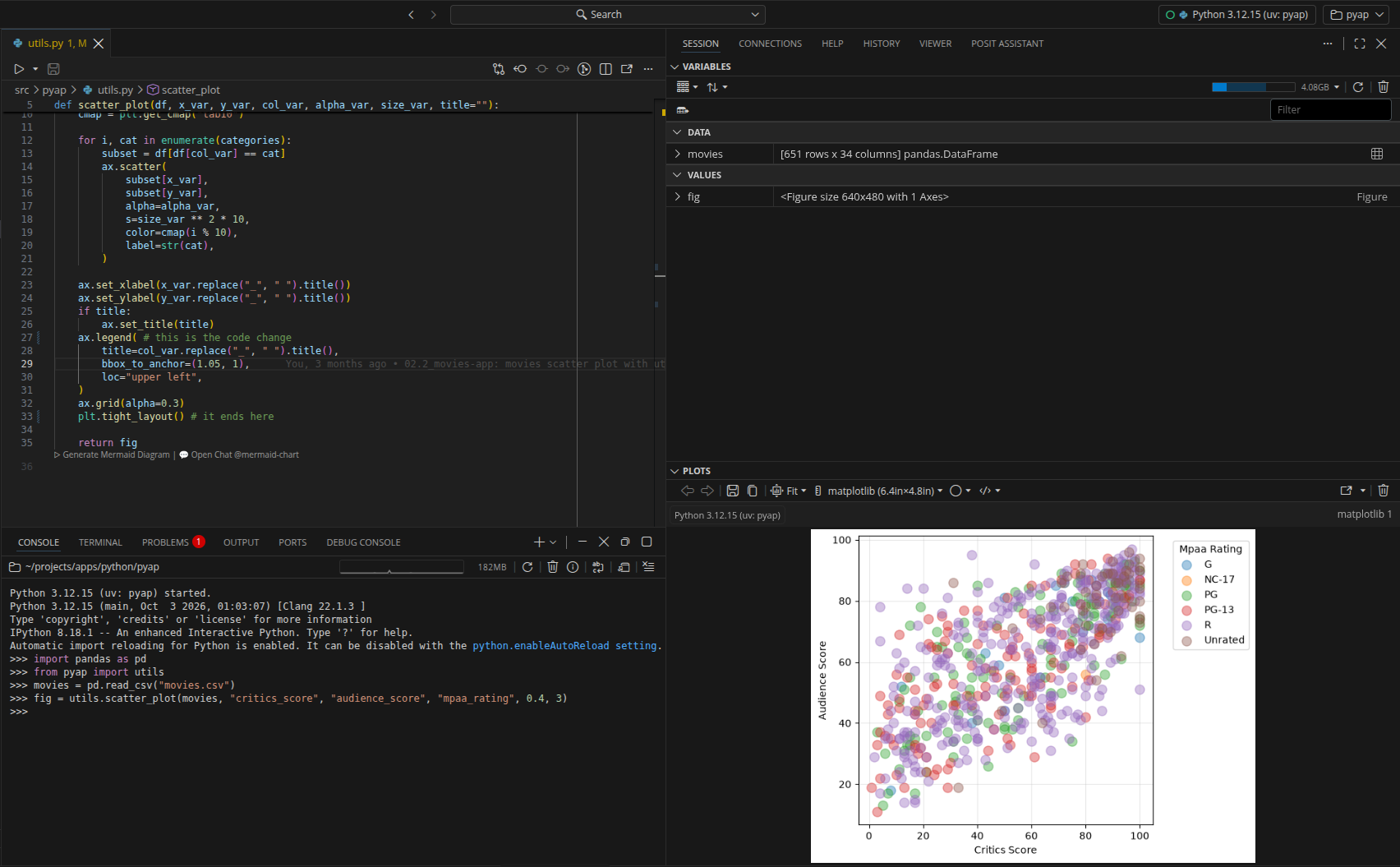
If we now edit utils.py and call utils.scatter_plot() again, we get the old version. Running from pyap import utils again doesn’t help, because Python finds pyap.utils in its module cache and never opens the file.
We have two options. The first is importlib.reload(), which re-executes a module that’s already been imported:
>>> import importlib
>>> importlib.reload(utils)
<module 'pyap.utils' from '/path/to/pyap/src/pyap/utils.py'>
The second is restarting the console and running the imports again. I’ve found restarting is the more reliable habit, for the reasons in the warning below.
4.5.2 Data and running apps
app.py reads movies.csv once, when the module is imported. Editing movies.csv doesn’t trigger --reload (see the note above), so the app keeps showing the old data until it restarts.
If we make changes to movies.csv, we have to press Ctrl + C in the terminal, then run the app again to pick up the change. The Data chapter moves the file into the package.
The same is true after hands edit to pyproject.toml while the app is running. --reload doesn’t watch pyproject.toml, so we’d have to stop the app and restart it with uv run, which syncs before launching.
If we launch an app started without --reload, we need to restart after every change.
4.6 Running tests
Tests close the loop. pytest starts a new Python process each time it runs, so it always imports the current code in src/pyap/ and nothing needs reloading. With the uv run prefix, it also runs against a synced environment:
uv run pytest
=================== test session starts ===================
platform linux -- Python 3.12.3, pytest-9.1.0, pluggy-1.6.0
rootdir: /path/to/pyap
configfile: pyproject.toml
plugins: shiny-1.6.3, anyio-4.14.0
collected 0 items

=================== no tests ran in 0.00s ===================
The 04_dev branch doesn’t have a tests/ folder yet, and pytest isn’t installed in this branch’s environment, so the command above has nothing to run here.3 We added both in the Whole Game chapter (uv add --dev pytest and a tests/test_data.py file), and the Test Suite chapter adds them to pyap.
Once tests exist, two variations are worth knowing during development:
- Run a single test file:4
uv run pytest tests/test_data.py- Stop at the first failure
uv run pytest -xThe Tests section covers fixtures, testing modules, and system tests, starting with the Test Suite chapter.
4.7 Using Positron for the loop
Positron isn’t required to run any of the commands I’ve covered so far (every step above is a Terminal command). However, Positron puts the same steps into panes that share a single environment, which removes a few of the places where things can drift out of sync. Below I’ll cover some of the other Positron settings for Python package development.
4.7.1 Choosing an interpreter
The .vscode/settings.json file from the 02.3_proj-app branch sets python.defaultInterpreterPath to .venv/bin/python. Positron will also detect .venv/ folders in the project on its own.
The interpreter picker in the top right corner of the window should show the Python from .venv/; if it doesn’t, select it there.
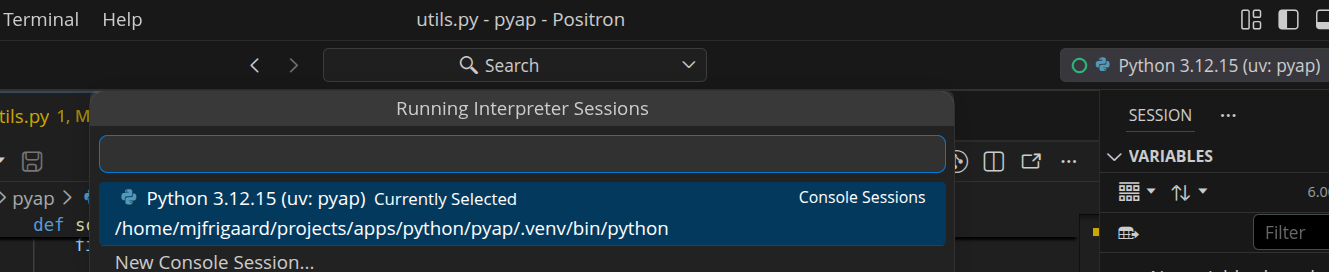
If .venv/ didn’t exist when the project was opened, run uv sync in the terminal first, then select the new environment.
With .venv/ selected, the console, the editor, and the test runner all use the same environment as uv run.
4.7.2 The console
The Python console starts in the project folder, so the pd.read_csv("movies.csv") example above works without changing directories. The restart button in the Console pane’s toolbar starts a fresh session, which is the restart from the previous section.
The console behaves like an activated environment: it doesn’t sync anything. After a hand edit to pyproject.toml, run uv sync in the terminal and then restart the console.
4.7.3 The terminal
The python.terminal.activateEnvironment setting in .vscode/settings.json activates .venv/ in every new terminal, so the prompt starts with (pyap).

Both styles from the start of this chapter work there:
uv run shiny run ...and …
shiny run ...launch the same app.
4.7.4 Running the app
When src/pyap/app.py is open in the editor, the Run Shiny App button (from the Shiny extension) launches the app with reloading turned on and displays it in the Viewer pane. Saving app.py or utils.py restarts the app, exactly as --reload does in the terminal.
app.py still reads movies.csv with a relative path, though, so the app only finds the file when it’s launched from the project root. If the app fails with a FileNotFoundError, launch it from the terminal instead:
uv run shiny run --reload --launch-browser src/pyap/app.pyThe Data chapter removes this dependence on the working directory.
4.8 Comparing the loop with R
The Python Packages chapter mapped each devtools function to its Python counterpart. The diagram below compares the shape of the two loops, which is where the day to day difference shows up:
%%{init: {'theme': 'neutral', 'themeVariables': { 'fontFamily': 'monospace', "fontSize":"14px"}}}%%

flowchart LR
    subgraph RLoop["<strong>R app-package</strong>"]
        REdit(["i. edit <code>R/</code>"])
        RLoad("ii. <code>load_all()</code>")
        RDoc("iii. <code>document()</code>")
        RInst("iv. <code>install()</code>")
        RTest("v. <code>test()</code><br/>and <code>check()</code>")
        REdit --> RLoad --> RDoc --> RInst --> RTest
        RTest -.->|"next change"| REdit
    end

    classDef rStyle fill:#2c5282,stroke:#63b3ed,color:#fff
    class REdit,RLoad,RDoc,RInst,RTest rStyle
In R, the load step is something we do on every pass: load_all() (or the keyboard shortcut) after each edit, plus document() and install() as the package changes.
%%{init: {'theme': 'neutral', 'themeVariables': { 'fontFamily': 'monospace', "fontSize":"14px"}}}%%

flowchart LR

    subgraph PyLoop["<strong>Python app-package</strong>"]
        PEdit(["i. edit <code>src/pyap/</code>"])
        PMeta{"ii. <code>pyproject.toml</code><br/>changed?"}
        PSync("<code>uv sync</code>")
        PSave("iii. save<br/>(<code>--reload</code> restarts<br/>the app)")
        PTest("iv. <code>uv run pytest</code>")
        PEdit --> PMeta
        PMeta -->|"no"| PSave
        PMeta -->|"yes"| PSync --> PSave
        PSave --> PTest
        PTest -.->|"next change"| PEdit
    end

    classDef pyStyle fill:#744210,stroke:#f6ad55,color:#fff
    class PEdit,PMeta,PSync,PSave,PTest pyStyle
In Python, the load step moves into process startup. --reload restarts the app on save, pytest starts fresh on every run, and uv sync only enters the loop when pyproject.toml or uv.lock changes. The one place we still load code by hand is the Python console, where a restart plays the role load_all() plays in R.
4.9 Recap
In this chapter we walked through the development loop for pyap on the 04_dev branch:
uv runruns a command in.venv/and syncs the environment first. An activated.venv/works too, but we have to runuv syncourselves.- Edits to Python code in
src/pyap/need no action, because the editable install points.venv/at our source files.shiny run --reloadrestarts the app whenever we save. - Changes to dependencies or metadata need a sync.
uv addanduv removesync for us, a hand edit topyproject.tomlor a new branch needsuv sync(or the nextuv run), anduv lockupdates only the lockfile. - Code a process has already imported needs a restart. In the console, that means restarting (or
importlib.reload()for quick checks), and data read at startup means restarting the app.
Tests run in a fresh process with uv run pytest, and Positron ties the console, terminal, and app runner to the same .venv/. In the next section of the book, starting with the Documentation chapter, we’ll use this loop to add documentation, dependencies, data, and a launch function to pyap.
renvactivates the project library automatically through the.Rprofilefile it writes, which makes it closer touv runthan tosource .venv/bin/activate.↩︎load_all()re-sources every file inR/each time we call it, so the Console always has the latest code. Python has no single command that does this for a whole package.↩︎f another copy of
pytestis on yourPATH,uv runmay pick it up instead of failing.↩︎This is similar to
devtools::test_active_file()in R.↩︎