%%{init: {'theme': 'neutral', 'themeVariables': { 'fontFamily': 'monospace', "fontSize":"14px"}}}%%

flowchart TB
    B0["<strong>02.3_proj-app</strong><br/>loose files +<br/><code>requirements.txt</code>"]
    B1["<strong>03.1_pyproject</strong><br/><code>pyproject.toml</code><br/>replaces <code>requirements.txt</code>"]
    B2["<strong>03.2_uv</strong><br/>uv manages<br/><code>.venv/</code> and <code>uv.lock</code>"]
    B3["<strong>03.3_create-package</strong><br/><code>[build-system]</code> +<br/><code>src/pyap/</code>"]

    B0 --> B1 --> B2 --> B3

    classDef project fill:#553c9a,stroke:#b794f4,color:#fff
    classDef uvStyle fill:#744210,stroke:#f6ad55,color:#fff
    classDef pkg fill:#2d3748,stroke:#48bb78,color:#fff

    class B0,B1 project
    class B2 uvStyle
    class B3 pkg
3 Python Packages
In the Whole Game chapter, a single uv init --package command created a pyproject.toml file, a src/pyap/ folder, and a build system, and we moved on without looking closely at any of them. This chapter slows that step down. We’ll start with the loose files from the end of the Shiny for Python chapter and turn them into an installable package one branch at a time, so each new file has a reason to exist before we add it.
If you’ve read Shiny App-Packages, you’ve seen this conversion before. In R, we added the mandatory fields to DESCRIPTION, configured the .Rproj build tools, and ran usethis::create_package(). The Python version follows the same arc, and I’ll point out where the two languages line up (and where they don’t) along the way.
The diagram below shows the three branches we’ll build in this chapter, starting from the 02.3_proj-app branch:
The first two branches change how the project describes and installs its dependencies, but the app code doesn’t move. Only the last branch turns pyap into a package.
3.1 What is a Python package?
In R, the word “package” covers everything at once. sap is the folder we develop, the thing we install with install.packages(), and the name we pass to library(). Python splits these into three separate ideas, and the documentation uses the word “package” for two of them. I’ve found this is the single biggest source of confusion for R developers reading Python packaging docs, so it’s worth getting the terms straight before we write any files.
3.1.1 Modules, packages, and distributions
The Python Packaging User Guide glossary defines the three terms below:
- Module: a single
.pyfile.utils.pyis a module, andfrom utils import scatter_plotimports a function from it. - Import package: a folder of modules with an
__init__.pyfile. In the03.3_create-packagebranch,src/pyap/becomes an import package, and the import changes tofrom pyap.utils import scatter_plot. - Distribution package: the installable archive built from a project (and described by its
pyproject.toml). When we runpip install shiny, we’re installing a distribution.
The names of an import package and a distribution package usually match, but they don’t have to. For example, we install scikit-learn with pip install scikit-learn, but we import it with import sklearn. Shiny keeps them the same (pip install shiny and import shiny), and so will pyap.
Distributions come in two formats. A source distribution (or sdist) is a .tar.gz archive of the project’s source files, and a wheel is a pre-built .whl archive that can be installed without a build step.1 We saw both in the dist/ folder at the end of the Whole Game chapter.
By these definitions, the 02.3_proj-app branch holds two modules (app.py and utils.py) and no packages of either kind. By the end of this chapter, it will hold one import package (pyap) that uv can build into a distribution (also pyap).
3.1.2 Anatomy of an app-package
The diagram below maps the files and folders in an R app-package to their Python counterparts. Solid arrows are direct equivalents, and dashed arrows mark mappings that only hold roughly:
%%{init: {'theme': 'neutral', 'themeVariables': { 'fontFamily': 'monospace', "fontSize":"14px"}}}%%

flowchart LR
    subgraph RPkg["R app-package"]
        RDesc("<code>DESCRIPTION</code>")
        RNs("<code>NAMESPACE</code>")
        RDir("<code>R/</code>")
        RMan("<code>man/</code>")
        RTests("<code>tests/testthat/</code>")
        RInst("<code>inst/</code>")
        RLock("<code>renv.lock</code>")
        RIgnore("<code>.Rbuildignore</code>")
    end

    subgraph PyPkg["Python app-package"]
        PyProj("<code>pyproject.toml</code>")
        PyInit("<code>__init__.py</code>")
        PySrc("<code>src/pyap/</code>")
        PyDoc("docstrings")
        PyTests("<code>tests/</code>")
        PyData("data files in<br/><code>src/pyap/</code>")
        PyLock("<code>uv.lock</code>")
        PyBuild("build backend<br/>settings")
    end

    RDesc --> PyProj
    RNs -.->|"roughly"| PyInit
    RDir --> PySrc
    RMan -.->|"roughly"| PyDoc
    RTests --> PyTests
    RInst -.->|"roughly"| PyData
    RLock --> PyLock
    RIgnore -.->|"roughly"| PyBuild

    classDef rStyle fill:#2c5282,stroke:#63b3ed,color:#fff
    classDef pyStyle fill:#744210,stroke:#f6ad55,color:#fff

    class RDesc,RNs,RDir,RMan,RTests,RInst,RLock,RIgnore rStyle
    class PyProj,PyInit,PySrc,PyDoc,PyTests,PyData,PyLock,PyBuild pyStyle
The ‘rough’ mappings above deserve at least a sentence of explanation (to the best of my knowledge):
NAMESPACEand__init__.py: Python doesn’t have a file that lists exports. Every name in a module is importable unless it starts with an underscore, and__init__.pycontrols what’s available directly frompyap(along with the optional__all__list). Imports from other packages are declared inpyproject.toml, not__init__.py.man/and docstrings: docstrings live on the objects themselves, so there’s no generated help folder. The Documentation chapter covers them.inst/and package data: non-Python files (likemovies.csv) can live insidesrc/pyap/and be installed with the code. The Data chapter covers how to read them..Rbuildignoreand build settings: the build backend decides which files go into a distribution, and most backends accept include and exclude settings in a[tool.*]table.
This chapter covers the top row of the diagram (pyproject.toml, __init__.py, and src/pyap/) and the lockfile. The remaining rows have their own chapters.
3.2 What is pyproject.toml?
pyproject.toml is the file that tells Python tools what a project is, what it depends on, and how to build it.2 Every modern Python packaging tool reads it, including pip, uv, and the build backends we’ll cover below.
3.2.1 Reading TOML
You don’t have to learn a new configuration language to read pyproject.toml, but it helps to know three rules of TOML (Tom’s Obvious Minimal Language):
- A name in square brackets (like
[project]) starts a table, and everything below it belongs to that table until the next one starts. - Inside a table, each line is a
key = valuepair. Strings are quoted, and lists go in square brackets. - A dot in a table name nests it, so
[project.scripts]is a table inside[project].
TOML is just a stricter version of the Field: value format in a DESCRIPTION file. The sections below cover the tables we’ll see in this book.
3.2.2 [project]
The [project] table holds the package metadata. The pyproject.toml from the Whole Game chapter is a good example:
[project]
name = "pyap"
version = "0.1.0"
description = "A Shiny for Python app-package"
readme = "README.md"
authors = [
    { name = "Jane Doe", email = "jane.doe@email.io" }
]
requires-python = ">=3.12"
dependencies = [
    "matplotlib>=3.11.2",
    "numpy>=2.5.3",
    "shiny>=1.8.0",
]
Only name is strictly required, and version is required unless a tool computes it for us. That’s a much shorter list than the seven mandatory fields in an R DESCRIPTION file.3 requires-python sets the Python versions the package supports, and dependencies lists the distributions it needs at runtime, using the same version specifiers as requirements.txt.
3.2.3 [build-system]
The [build-system] table tells installers which build backend to use and how to install it:
[build-system]
requires = ["uv_build>=0.12.23,<0.13.0"]
build-backend = "uv_build"
requires lists the packages needed to build the project, and build-backend names the object that does the building. We’ll cover backends in their own section below. For now, the important point is what this table signals: a pyproject.toml with a [build-system] table describes something that can be built and installed as a package.
3.2.4 [dependency-groups]
The [dependency-groups] table (PEP 735) holds dependencies we need while developing the package, but that users don’t need to run it:
[dependency-groups]
dev = [
    "pytest>=9.1.1",
]
Dependency groups aren’t included in the package metadata, so installing pyap never installs pytest.4 uv installs the dev group by default when it syncs the project. The Dependencies chapter covers groups in more detail.
3.2.5 [project.scripts]
The [project.scripts] table registers terminal commands that are created when the package is installed. Each key is a command name, and each value points to a function as module:function:
[project.scripts]
pyap = "pyap.app:run"
This is the entry we added in the Whole Game chapter so that typing pyap in a terminal launches the app. R packages don’t have a direct equivalent. We won’t add a launch function in this chapter, and the Launch chapter covers entry points in detail.
3.2.6 [tool.*]
Any table that starts with tool. belongs to a specific tool, and every other tool ignores it. This lets a project keep its configuration in one file instead of a folder of dotfiles. For example, pytest reads its settings from [tool.pytest.ini_options]:
[tool.pytest.ini_options]
testpaths = ["tests"]
We’ll add [tool.*] tables as we adopt new tools throughout the book. For a real world example of all these tables working together, the pyproject.toml for py-shiny is worth skimming. It’s much longer than ours, but it’s built from the same pieces.
3.3 Writing pyproject.toml
The first branch replaces requirements.txt with a hand written pyproject.toml. Check out the 03.1_pyproject branch to follow along:
git checkout 03.1_pyprojectThe app code doesn’t change. The branch deletes requirements.txt, adds pyproject.toml, and updates the install instructions in README.md:
pyap/
├── .gitignore
├── .vscode/
│   └── settings.json
├── README.md
├── app.py
├── movies.csv
├── pyproject.toml
└── utils.py
3.3.1 Adding project metadata
The full pyproject.toml in this branch is below:
[project]
name = "pyap"
version = "0.1.0"
description = "A Shiny for Python app-package"
readme = "README.md"
authors = [
    { name = "Martin Frigaard" }
]
requires-python = ">=3.12"
dependencies = [
    "matplotlib>=3.8.0",
    "numpy>=1.26.0",
    "pandas>=2.1.0",
    "shiny>=1.2.0",
]
The dependencies list holds the same four entries (and lower bounds) as the old requirements.txt, sorted alphabetically. The rest of the table gives the project a name, a version, and a supported Python version, which requirements.txt had no way to record.
The file doesn’t have a [build-system] table yet. This is deliberate. pyap is still a folder of loose modules with nothing to build, so we’re only using pyproject.toml to describe the project and its dependencies.
3.3.2 Installing from pyproject.toml
uv can install the dependencies from a pyproject.toml with the same -r flag we used for requirements.txt:
uv venv
source .venv/bin/activate
uv pip install -r pyproject.toml
If you already have a .venv/ from the earlier branches, you can skip uv venv. The install command only reads the dependencies list. It doesn’t try to install pyap itself (which is good, because there’s nothing to install yet).
We can confirm the environment still works by launching the app the same way as before:
shiny run --reload --launch-browser app.py3.4 Managing the project with uv
In the 03.1_pyproject branch, uv is only acting as a faster pip: we create the environment, activate it, and tell it what to install. The 03.2_uv branch hands the whole job to uv’s project commands. uv is also the first option listed on the Shiny for Python install page. Check out the 03.2_uv branch to follow along:
git checkout 03.2_uvThe app code and pyproject.toml are unchanged. The branch adds .python-version and uv.lock, removes both from .gitignore so they’re committed, and updates the commands in README.md:
pyap/
├── .gitignore
├── .python-version
├── .vscode/
│   └── settings.json
├── README.md
├── app.py
├── movies.csv
├── pyproject.toml
├── utils.py
└── uv.lock
3.4.1 Pinning Python
requires-python in pyproject.toml sets the range of Python versions the project supports, but it doesn’t choose one. uv python pin records the exact version uv should use for this project in a .python-version file:
uv python pin 3.12Returns:
Pinned `.python-version` to `3.12`
The file holds a single line:
3.12If Python 3.12 isn’t installed, uv downloads it the first time it needs it (we covered uv python install in the Introduction).
3.4.2 Syncing the environment
uv sync reads pyproject.toml, resolves the dependencies, and makes .venv/ match the result:
uv sync
Resolved 45 packages in 127ms
Checked 43 packages in 0.48ms
This one command does the work of the three we ran in the previous branch. uv creates .venv/ if it doesn’t exist (or reuses it if it does), writes uv.lock, and installs the locked versions into the environment. We don’t need to activate the environment first, and we don’t need to tell uv which file to read.
To run a command inside the environment, we prefix it with uv run:
uv run shiny run --reload app.py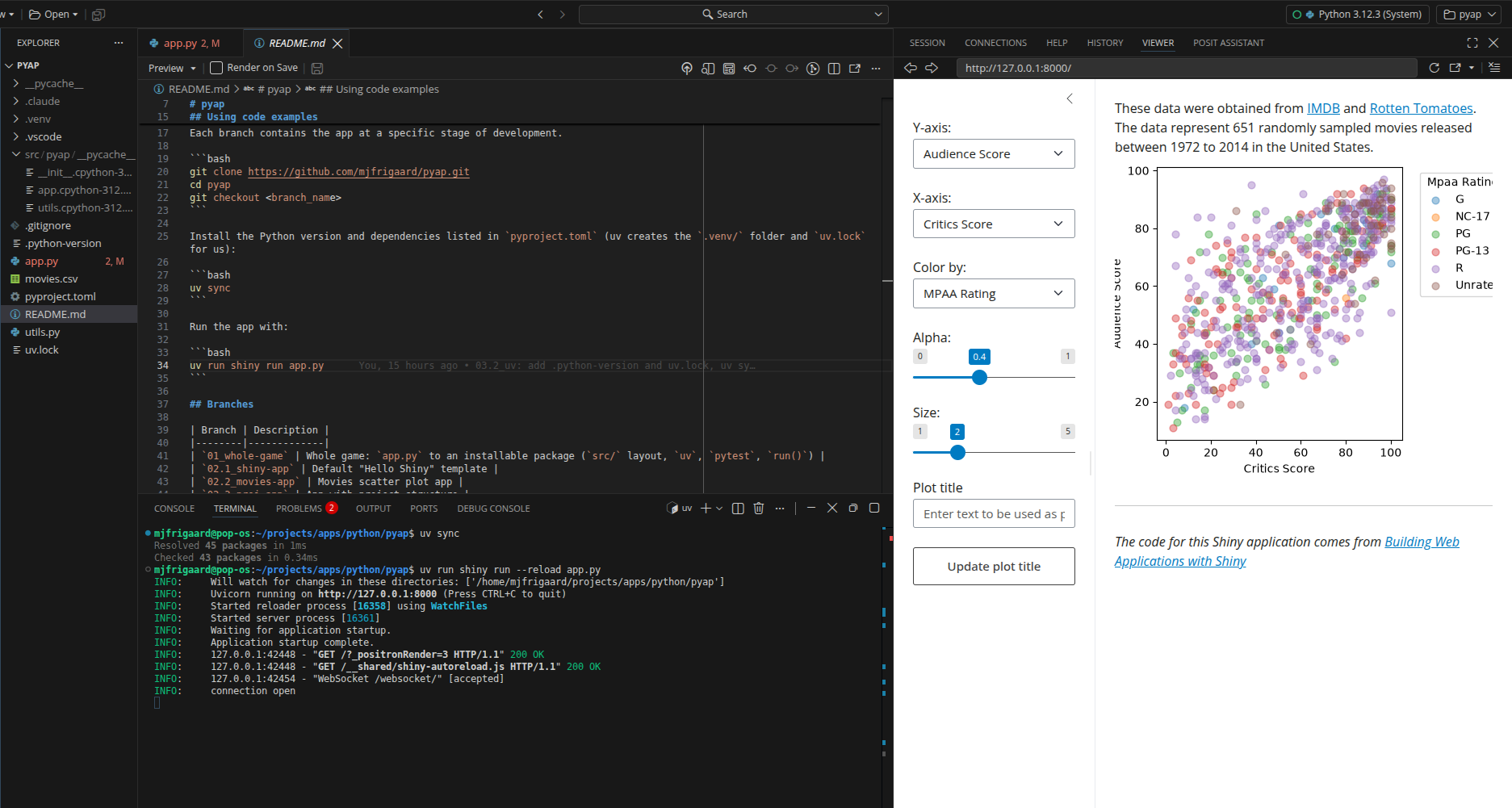
uv run checks that .venv/ is in sync with uv.lock before running the command, so most of the time we don’t need to call uv sync ourselves.
3.4.3 uv.lock
uv.lock records the exact version of every package in the environment, including the dependencies of our dependencies. pyproject.toml says pandas>=2.1.0, and uv.lock says which pandas was installed. uv writes the lockfile for every platform at once, so a lockfile created on macOS installs the same versions on Windows or Linux.
We don’t edit uv.lock by hand, but it’s worth knowing what’s in it. The diagram below compares how a dependency moves from declaration to installation in R (with renv) and in Python (with uv):
%%{init: {'theme': 'neutral', 'themeVariables': { 'fontFamily': 'monospace', "fontSize":"14px"}}}%%

flowchart TB
    subgraph RDeps["R"]
    direction TB
        RDesc["<code>DESCRIPTION</code><br/><code>Imports</code>"]
        RLib[("project library<br/><code>renv/library/</code>")]
        RLock["<code>renv.lock</code>"]
        RDesc -->|"<code>install_deps()</code>"| RLib
        RLib -->|"<code>renv::snapshot()</code>"| RLock
    end

    subgraph PyDeps["Python"]
    direction TB
        PyProj["<code>pyproject.toml</code><br/><code>dependencies</code>"]
        PyLock["<code>uv.lock</code>"]
        PyVenv[("project environment<br/><code>.venv/</code>")]
        PyProj -->|"<code>uv lock</code>"| PyLock
        PyLock -->|"<code>uv sync</code>"| PyVenv
    end

    classDef rStyle fill:#2c5282,stroke:#63b3ed,color:#fff
    classDef pyStyle fill:#744210,stroke:#f6ad55,color:#fff

    class RDesc,RLib,RLock rStyle
    class PyProj,PyLock,PyVenv pyStyle
The order of the last two steps is the important difference. renv::snapshot() records whatever is already installed in the project library, so the lockfile follows the environment. uv resolves uv.lock from pyproject.toml first and then installs from it, so the environment follows the lockfile.5 uv sync runs the uv lock step for us whenever pyproject.toml changes.
3.4.4 Non-package projects
The pyproject.toml in this branch still doesn’t have a [build-system] table, and uv notices. uv treats a project without a build system as a non-package project: it installs the dependencies into .venv/, but it doesn’t install the project itself.6 The lockfile entry for pyap reflects this with a virtual source (trimmed below):
[[package]]
name = "pyap"
version = "0.1.0"
source = { virtual = "." }
dependencies = [
    { name = "matplotlib" },
    { name = "numpy" },
    { name = "pandas" },
    { name = "shiny" },
]
We can confirm pyap isn’t installed by trying to import it:
uv run python -c "import pyap"
ModuleNotFoundError: No module named 'pyap'
This error is expected. A non-package project is a perfectly good way to manage an app that only ever runs from its own folder, and many Shiny for Python apps never need more. We want pyap to be importable (and testable, and installable), though, so the next step is giving it something to build.
3.5 Build backends
A build backend is the tool that turns a project’s source files into a distribution. When an installer like pip or uv needs to build a package, it reads [build-system], installs the packages listed in requires into a temporary environment, and asks the build-backend to produce a wheel or an sdist.7 Installers and backends only talk through the interface defined in PEP 517, so any installer works with any backend.
The [build-system] table for four common backends is below:
| Backend | requires |
build-backend |
|---|---|---|
| uv_build | ["uv_build>=0.12.23,<0.13.0"] |
"uv_build" |
| Hatchling | ["hatchling"] |
"hatchling.build" |
| setuptools | ["setuptools>=61"] |
"setuptools.build_meta" |
| Flit | ["flit_core"] |
"flit_core.buildapi" |
For a pure Python package like pyap, these backends produce nearly the same wheel. They differ in their defaults (where they look for the package, which files they include) and in how much they can be configured. setuptools is the oldest and the one you’ll find in most older projects. Hatchling is the first option in the Python Packaging User Guide tutorial, and Flit is intentionally minimal.
This book uses uv_build, the default backend for uv init --package (it’s the backend in the Whole Game pyproject.toml). It’s built by the same team as uv, it expects the src/ layout we’ll use below, and it needs no configuration for a package like pyap. The version range in requires should match the version of uv you have installed (check it with uv --version), so yours may differ from the one in this chapter.
3.6 Creating the package
The 03.3_create-package branch turns pyap into a package. Check it out to follow along:
git checkout 03.3_create-packageThe branch makes three changes: it adds a [build-system] table to pyproject.toml, it moves the Python code into src/pyap/, and it updates the import in app.py. The new project structure is below:
pyap/
├── .gitignore
├── .python-version
├── .vscode/
│   └── settings.json
├── README.md
├── movies.csv
├── pyproject.toml
├── src/
│   └── pyap/
│       ├── __init__.py
│       ├── app.py
│       └── utils.py
└── uv.lock
R packages need two things to be packages: a DESCRIPTION file with the mandatory fields and an R/ folder. A Python package needs three: a pyproject.toml with name and version, a [build-system] table, and an import package for the backend to build. We already have the first, so the sections below add the other two.
3.6.1 Adding a build system
We’ll add the [build-system] table to the bottom of pyproject.toml. The complete file is below:
[project]
name = "pyap"
version = "0.1.0"
description = "A Shiny for Python app-package"
readme = "README.md"
authors = [
    { name = "Martin Frigaard" }
]
requires-python = ">=3.12"
dependencies = [
    "matplotlib>=3.8.0",
    "numpy>=1.26.0",
    "pandas>=2.1.0",
    "shiny>=1.2.0",
]

[build-system]
requires = ["uv_build>=0.12.23,<0.13.0"]
build-backend = "uv_build"
With this table in place, uv stops treating pyap as a non-package project. It also tells uv_build what to build: by default, uv_build looks for an import package with the same name as the project in src/ (so src/pyap/__init__.py).
3.6.2 Moving the code into src/pyap/
Next, we’ll create the package folder and move both modules into it:
mkdir -p src/pyap
mv app.py utils.py src/pyap/
src/pyap/ needs an __init__.py file to be an import package. Python runs __init__.py the first time pyap is imported, so anything defined or imported in it is available as pyap.<name>. We don’t need to expose anything yet, so the file only holds a docstring describing the package:
"""A Shiny for Python app-package."""Putting the package under src/ (instead of a pyap/ folder at the project root) means Python can only import pyap after it’s installed, not just because it happens to be in the working directory. The src/ Layout chapter explains why this protects our tests, and the Flat Layout chapter covers the alternative.
3.6.3 Updating imports
app.py imported scatter_plot() with from utils import scatter_plot, which worked because utils.py was in the same folder as app.py. Inside a package, modules import each other using the full package path:
# Run with: uv run shiny run src/pyap/app.py
from shiny import App, ui, render, reactive
import pandas as pd

from pyap.utils import scatter_plot
The rest of app.py (including import pandas as pd) is unchanged, and so is utils.py. pandas, matplotlib, and shiny are installed distributions, so they’re imported by name exactly as before. Only imports of our own code change.
3.6.4 Where the data file goes
movies.csv stays at the project root in this branch. app.py still reads it with pd.read_csv("movies.csv"), and that relative path is resolved from the folder we launch the app from (not the folder that holds app.py). As long as we run the app from the project root, the file is found.
This works, but it’s fragile. The wheel is built from src/pyap/, so movies.csv isn’t part of the installed package, and launching the app from any other folder fails. Moving the file into src/pyap/ doesn’t fix the relative path on its own. The Data chapter moves movies.csv into the package and reads it with importlib.resources, which finds the file wherever the package is installed.
3.6.5 Installing in editable mode
With a build system and an import package in place, uv sync now installs pyap itself along with its dependencies:
uv sync
Resolved 45 packages in 411ms
      Built pyap @ file:///home/path/to/projects/apps/python/pyap
Prepared 1 package in 10ms
Installed 1 package in 0.96ms
 + pyap==0.1.0 (from file:///home/path/to/projects/apps/python/pyap)
uv installs the project in editable mode by default. An editable install points Python at the files in src/pyap/ instead of copying them into .venv/, so changes to the code are picked up the next time pyap is imported (without reinstalling).8 We only need to sync again when pyproject.toml changes. The pyap entry in uv.lock changes from a virtual source to an editable one:
[[package]]
name = "pyap"
version = "0.1.0"
source = { editable = "." }
The import that failed in the previous branch now works, and __file__ shows Python is reading pyap from our source folder:
uv run python -c "import pyap; print(pyap.__file__)"
/path/to/pyap/src/pyap/__init__.py
3.6.6 Running the app
The app now lives at src/pyap/app.py, so we pass that path to shiny run. We’ll run it from the project root, so movies.csv is found:
uv run shiny run --reload --launch-browser src/pyap/app.pyThe app looks and behaves exactly as it did in the 02.3_proj-app branch.
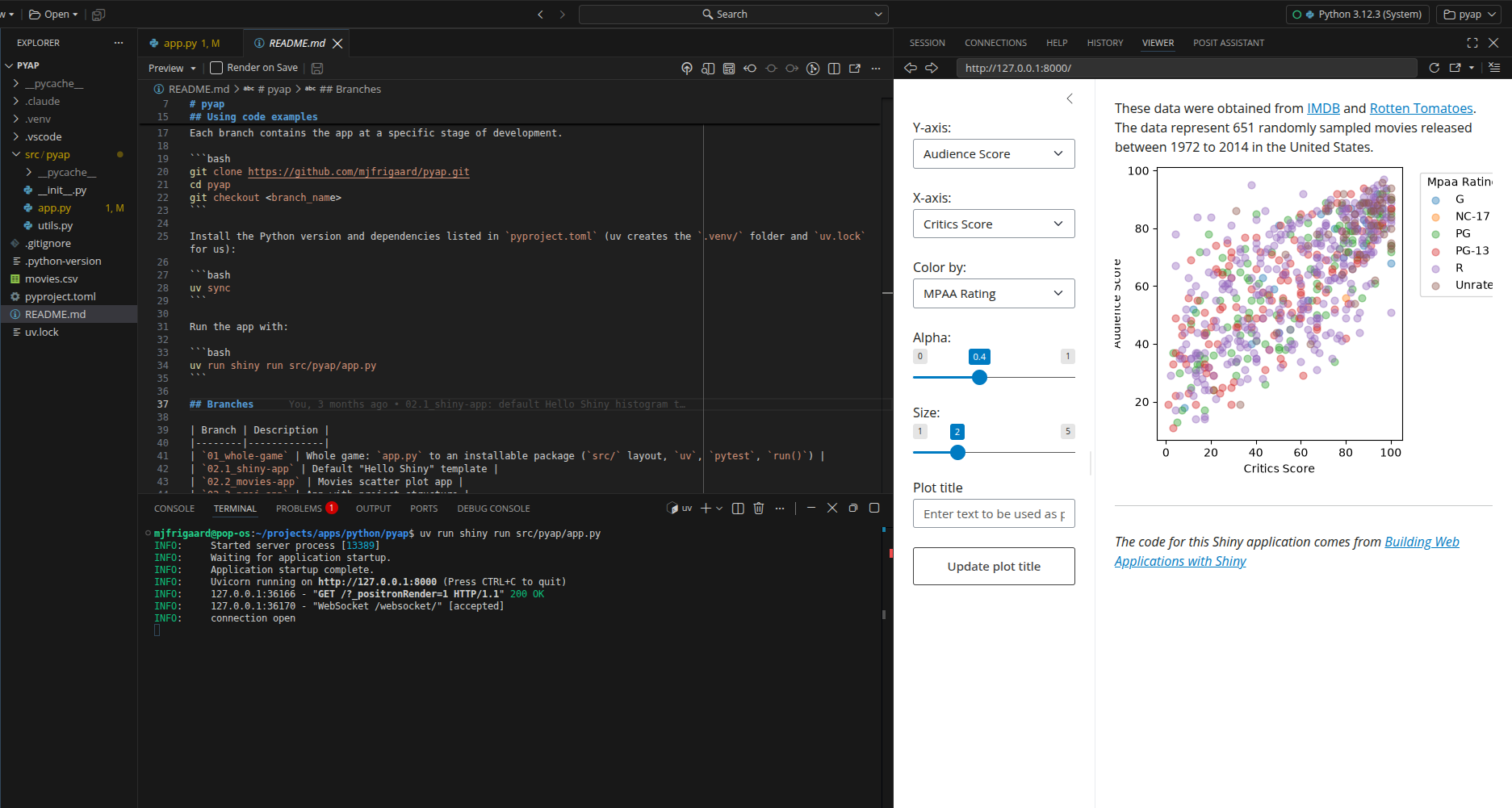
We can confirm the package import is working by changing the x axis dropdown and watching the scatter plot update (the plot comes from pyap.utils, so it wouldn’t render if the import failed).
3.7 The development loop
Now that pyap is a package, the day to day loop of editing, documenting, testing, and building looks different from the R workflow. The diagram below maps the devtools functions from the R book to the uv and pytest commands we’ll use in this one:
%%{init: {'theme': 'neutral', 'themeVariables': { 'fontFamily': 'monospace', "fontSize":"14px"}}}%%

flowchart LR
    subgraph RLoop["R (devtools)"]
        LA("<code>load_all()</code>")
        DOC("<code>document()</code>")
        TST("<code>test()</code>")
        CHK("<code>check()</code>")
        INS("<code>install()</code>")
        BLD("<code>build()</code>")
    end

    subgraph PyLoop["Python (uv + pytest)"]
        SYNC("<code>uv sync</code><br/>(editable install)")
        DS("docstrings<br/>(no build step)")
        PT("<code>uv run pytest</code>")
        NONE("no single<br/>command")
        UB("<code>uv build</code>")
    end

    LA --> SYNC
    INS --> SYNC
    DOC --> DS
    TST --> PT
    CHK -.->|"roughly"| NONE
    BLD --> UB

    classDef rStyle fill:#2c5282,stroke:#63b3ed,color:#fff
    classDef pyStyle fill:#744210,stroke:#f6ad55,color:#fff

    class LA,DOC,TST,CHK,INS,BLD rStyle
    class SYNC,DS,PT,NONE,UB pyStyle
Two R functions collapse into one Python command. load_all() and install() both become the editable install from uv sync, because the installed package and our source files are the same files. document() disappears, since docstrings don’t need to be rendered into help files before help() can read them. check() doesn’t have a single equivalent; its jobs are split across pytest, linters, and type checkers.
The Development Workflow chapter covers this loop in practice, and the Test Suite and PyPI chapters cover testing and building.
3.8 Recap
In this chapter we turned the loose files from the Shiny for Python chapter into an installable package, one branch at a time:
03.1_pyproject: a hand written
pyproject.tomlwith a[project]table replacedrequirements.txt, anduv pip install -r pyproject.tomlinstalled the dependencies.03.2_uv:
uv python pinanduv synchanded the environment touv, which created.python-version,.venv/, anduv.lock. Without a[build-system]table,uvtreatedpyapas a non-package project and installed only its dependencies.03.3_create-package: a
[build-system]table withuv_build, an import package insrc/pyap/, and package imports (from pyap.utils import scatter_plot) madepyapinstallable, anduv syncinstalled it in editable mode.
Along the way, we separated modules, import packages, and distributions (which R folds into a single word), and saw why pyproject.toml replaced setup.py, setup.cfg, and requirements.txt. The project still reads movies.csv from the working directory, which we’ll fix in the Data chapter. In the Development Workflow chapter we’ll put the package to work with the edit, sync, and run loop.
For more depth on the topics in this chapter, see:
- Python Packages: the Python counterpart to R Packages, 2ed.
- Python Packaging User Guide: the official tutorial for building and publishing a package.
- uv projects documentation: how uv handles
pyproject.toml,uv.lock, and build systems.
An sdist is roughly the Python version of a bundled R package (the
.tar.gzfile fromdevtools::build()), and a wheel is roughly a binary package.↩︎pyproject.tomlis the closest Python equivalent of theDESCRIPTIONfile. It also absorbs some of the jobs we’d hand to.Rprojbuild settings and package configuration in R.↩︎dependenciesplays the role ofImportsinDESCRIPTION, andrequires-pythonplays the role ofDepends: R (>= 4.1.0).↩︎[dependency-groups]is roughly theSuggestsfield, which is where R packages listtestthat. The difference is thatSuggestsis published with the package and dependency groups are not.↩︎uv syncon a fresh clone is the equivalent ofrenv::restore().↩︎uvlets us override this choice withpackage = trueorpackage = falsein a[tool.uv]table, but the[build-system]table is the standard signal.↩︎R has one build tool built into the language (
R CMD buildandR CMD INSTALL, whichdevtoolscalls for us). Python lets each project choose its own.↩︎An editable install gives us the same quick feedback loop as
devtools::load_all().↩︎