Tracking Spending

1 Book Topics

  • Capture methods: spending journal, checkbook register, cash envelopes, bank statements; pick one and run it for a full month
  • Bank statement exports: Date, Description, Amount columns; you add the Category
  • Categorization: 6–10 stable buckets; use “Other” when in doubt; only promote a new category after seeing it 3 months running
  • Monthly review: pull statements → categorize → compare to budget → pick one change; repeat 12× per year
  • Subscriptions: average household spends $200–$300/month without realizing it; audit every 90 days

2 Bank Statement Data

A minimal bank export has three columns: Date, Description, and Amount. The code blocks below show how to create an example bank statement file in R, Python, and Excel.

show/hide
r_bank_statement <- tibble::tibble(
  Date = as.Date(c(
    "2026-01-02", "2026-01-02", "2026-01-03", "2026-01-03",
    "2026-01-04", "2026-01-04", "2026-01-05", "2026-01-06",
    "2026-01-07", "2026-01-08", "2026-01-09", "2026-01-10",
    "2026-01-11", "2026-01-12", "2026-01-13", "2026-01-14",
    "2026-01-15"
  )),
  Description = c(
    "Employer Payroll", "Rent", "Comcast Internet", "Trader Joe's",
    "Shell Gas", "Netflix", "Starbucks", "PG&E Electric",
    "AT&T Wireless", "Spotify", "Whole Foods", "Chipotle",
    "Geico Auto Insurance", "NYTimes Digital", "Shell Gas", "Costco",
    "24 Hour Fitness"
  ),
  Amount = c(
     2400.00, -1500.00, -75.00, -82.45, -45.20, -15.99, -6.75,
    -142.30, -85.00, -10.99, -64.12, -14.50, -125.00, -17.00,
     -42.80, -156.78, -39.99
  )
)

r_bank_statement |> knitr::kable()
Date Description Amount
2026-01-02 Employer Payroll 2400.00
2026-01-02 Rent -1500.00
2026-01-03 Comcast Internet -75.00
2026-01-03 Trader Joe’s -82.45
2026-01-04 Shell Gas -45.20
2026-01-04 Netflix -15.99
2026-01-05 Starbucks -6.75
2026-01-06 PG&E Electric -142.30
2026-01-07 AT&T Wireless -85.00
2026-01-08 Spotify -10.99
2026-01-09 Whole Foods -64.12
2026-01-10 Chipotle -14.50
2026-01-11 Geico Auto Insurance -125.00
2026-01-12 NYTimes Digital -17.00
2026-01-13 Shell Gas -42.80
2026-01-14 Costco -156.78
2026-01-15 24 Hour Fitness -39.99

We can view the bank statement in R using knitr::kable().

In Python, we’ll use polars to create a DataFrame and display the bank statement. This is similar to the tibble we created above.

show/hide
import polars as pl

py_bank_statement = pl.DataFrame({
    "Date": [
        "2026-01-02", "2026-01-02", "2026-01-03", "2026-01-03",
        "2026-01-04", "2026-01-04", "2026-01-05", "2026-01-06",
        "2026-01-07", "2026-01-08", "2026-01-09", "2026-01-10",
        "2026-01-11", "2026-01-12", "2026-01-13", "2026-01-14",
        "2026-01-15"
    ],
    "Description": [
        "Employer Payroll", "Rent", "Comcast Internet", "Trader Joe's",
        "Shell Gas", "Netflix", "Starbucks", "PG&E Electric",
        "AT&T Wireless", "Spotify", "Whole Foods", "Chipotle",
        "Geico Auto Insurance", "NYTimes Digital", "Shell Gas", "Costco",
        "24 Hour Fitness"
    ],
    "Amount": [
         2400.00, -1500.00, -75.00, -82.45, -45.20, -15.99, -6.75,
        -142.30, -85.00, -10.99, -64.12, -14.50, -125.00, -17.00,
         -42.80, -156.78, -39.99
    ]
}).with_columns(pl.col("Date").str.to_date())

py_bank_statement
shape: (17, 3)
Date Description Amount
date str f64
2026-01-02 "Employer Payroll" 2400.0
2026-01-02 "Rent" -1500.0
2026-01-03 "Comcast Internet" -75.0
2026-01-03 "Trader Joe's" -82.45
2026-01-04 "Shell Gas" -45.2
2026-01-04 "Netflix" -15.99
2026-01-05 "Starbucks" -6.75
2026-01-06 "PG&E Electric" -142.3
2026-01-07 "AT&T Wireless" -85.0
2026-01-08 "Spotify" -10.99
2026-01-09 "Whole Foods" -64.12
2026-01-10 "Chipotle" -14.5
2026-01-11 "Geico Auto Insurance" -125.0
2026-01-12 "NYTimes Digital" -17.0
2026-01-13 "Shell Gas" -42.8
2026-01-14 "Costco" -156.78
2026-01-15 "24 Hour Fitness" -39.99

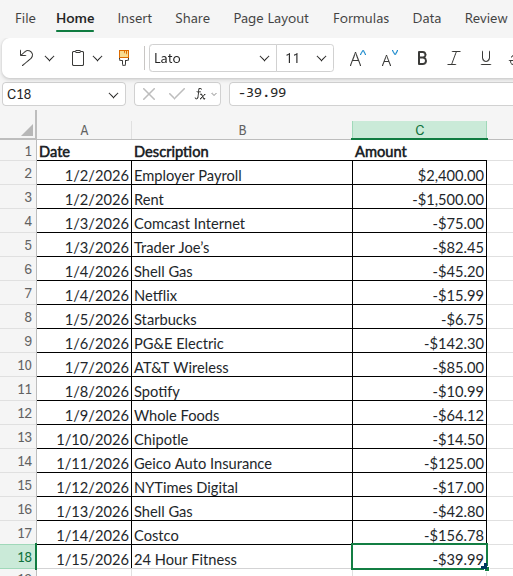
We can simply copy and paste the data into Excel; Date in A, Description in B, Amount in C.

bank_statement in Excel

bank_statement in Excel

3 Categorizing Transactions

Map description keywords to budget buckets in a single pass.

In R, we can use dplyr to do the following:

  • dplyr::case_when() evaluates each pattern in order and assigns the matching category

    • grepl() does the keyword test against Description
  • The final TRUE arm catches everything that didn’t match and labels it "Other"

show/hide
r_bank_statement <- r_bank_statement |>
  dplyr::mutate(
    Category = dplyr::case_when(
      grepl("Payroll", Description) ~ "Income",
      grepl("Rent", Description) ~ "Housing",
      grepl("Comcast|PG&E|AT&T", Description) ~ "Utilities",
      grepl("Trader Joe|Whole Foods|Costco", Description) ~ "Groceries",
      grepl("Shell", Description) ~ "Transportation",
      grepl("Starbucks|Chipotle", Description) ~ "Dining",
      grepl("Netflix|Spotify|NYTimes|24 Hour Fitness", Description) ~ "Subscriptions",
      grepl("Geico", Description) ~ "Insurance",
      TRUE ~ "Other"
    )
  )

r_bank_statement |> 
  knitr::kable()
Date Description Amount Category
2026-01-02 Employer Payroll 2400.00 Income
2026-01-02 Rent -1500.00 Housing
2026-01-03 Comcast Internet -75.00 Utilities
2026-01-03 Trader Joe’s -82.45 Groceries
2026-01-04 Shell Gas -45.20 Transportation
2026-01-04 Netflix -15.99 Subscriptions
2026-01-05 Starbucks -6.75 Dining
2026-01-06 PG&E Electric -142.30 Utilities
2026-01-07 AT&T Wireless -85.00 Utilities
2026-01-08 Spotify -10.99 Subscriptions
2026-01-09 Whole Foods -64.12 Groceries
2026-01-10 Chipotle -14.50 Dining
2026-01-11 Geico Auto Insurance -125.00 Insurance
2026-01-12 NYTimes Digital -17.00 Subscriptions
2026-01-13 Shell Gas -42.80 Transportation
2026-01-14 Costco -156.78 Groceries
2026-01-15 24 Hour Fitness -39.99 Subscriptions

polars is similar to dplyr, but:

  • with_columns() is the mutate() analog

    • a chain of pl.when().then() calls is the case_when() analog
  • pl.col("Description").str.contains(...) does the keyword test

    • regex by default and the | between merchants is alternation
show/hide
py_bank_statement = py_bank_statement.with_columns(
    Category = pl.when(pl.col("Description").str.contains("Payroll")).then(pl.lit("Income"))
        .when(pl.col("Description").str.contains("Rent")).then(pl.lit("Housing"))
        .when(pl.col("Description").str.contains("Comcast|PG&E|AT&T")).then(pl.lit("Utilities"))
        .when(pl.col("Description").str.contains("Trader Joe|Whole Foods|Costco")).then(pl.lit("Groceries"))
        .when(pl.col("Description").str.contains("Shell")).then(pl.lit("Transportation"))
        .when(pl.col("Description").str.contains("Starbucks|Chipotle")).then(pl.lit("Dining"))
        .when(pl.col("Description").str.contains("Netflix|Spotify|NYTimes|24 Hour Fitness")).then(pl.lit("Subscriptions"))
        .when(pl.col("Description").str.contains("Geico")).then(pl.lit("Insurance"))
        .otherwise(pl.lit("Other"))
)

py_bank_statement
shape: (17, 4)
Date Description Amount Category
date str f64 str
2026-01-02 "Employer Payroll" 2400.0 "Income"
2026-01-02 "Rent" -1500.0 "Housing"
2026-01-03 "Comcast Internet" -75.0 "Utilities"
2026-01-03 "Trader Joe's" -82.45 "Groceries"
2026-01-04 "Shell Gas" -45.2 "Transportation"
2026-01-04 "Netflix" -15.99 "Subscriptions"
2026-01-05 "Starbucks" -6.75 "Dining"
2026-01-06 "PG&E Electric" -142.3 "Utilities"
2026-01-07 "AT&T Wireless" -85.0 "Utilities"
2026-01-08 "Spotify" -10.99 "Subscriptions"
2026-01-09 "Whole Foods" -64.12 "Groceries"
2026-01-10 "Chipotle" -14.5 "Dining"
2026-01-11 "Geico Auto Insurance" -125.0 "Insurance"
2026-01-12 "NYTimes Digital" -17.0 "Subscriptions"
2026-01-13 "Shell Gas" -42.8 "Transportation"
2026-01-14 "Costco" -156.78 "Groceries"
2026-01-15 "24 Hour Fitness" -39.99 "Subscriptions"

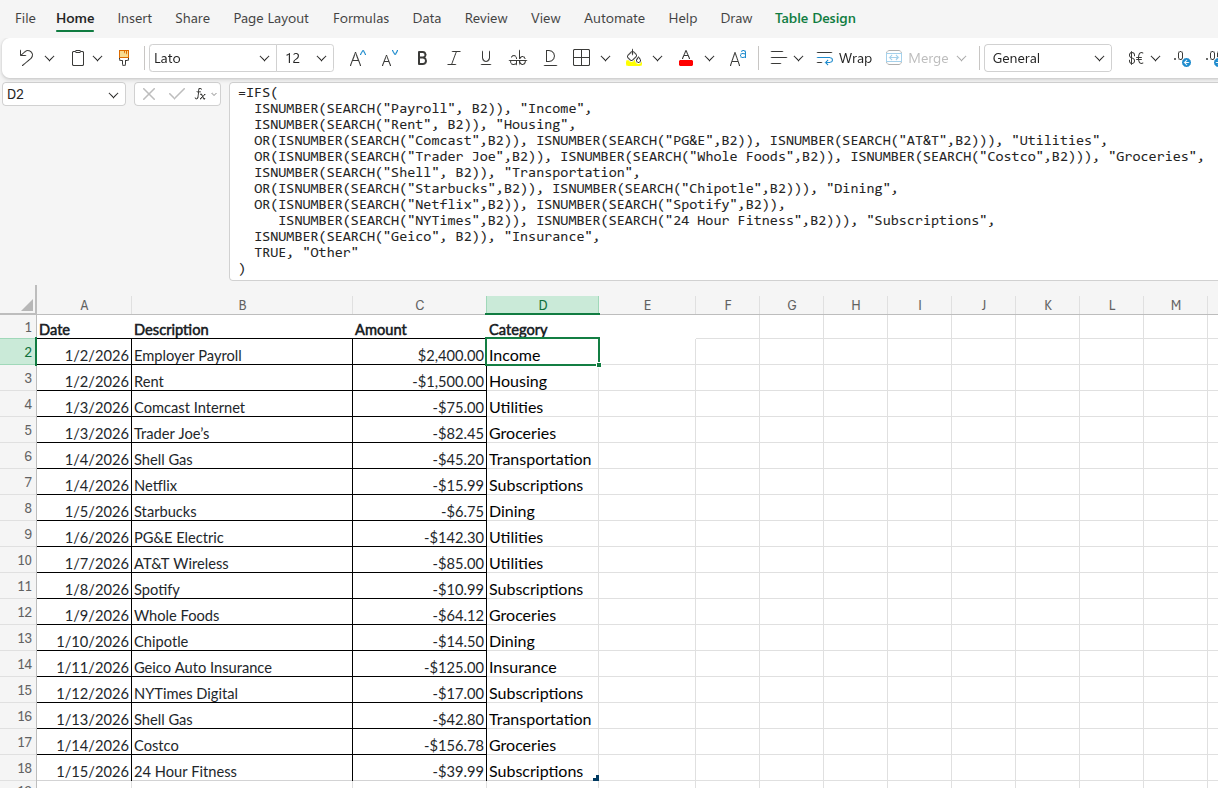
In Excel, the IFS() function is the direct analog of case_when()/when().then().

  • IFS() takes a list of conditions and corresponding values, evaluated top to bottom, with the first match winning

  • SEARCH() returns the position of a keyword in a cell (or #VALUE! if not found)

  • Wrapping it in ISNUMBER() turns that into a true/false test

    • For categories with several rows/transactions, wrap the tests in OR()
  • The final TRUE, "Other" arm is the equivalent of dplyr’s TRUE ~ "Other" and polars’s .otherwise(...); it catches anything that didn’t match an earlier pattern.

=IFS(
  ISNUMBER(SEARCH("Payroll",B2)), "Income",
  ISNUMBER(SEARCH("Rent",B2)), "Housing",
  OR(ISNUMBER(SEARCH("Comcast",B2)),ISNUMBER(SEARCH("PG&E",B2)),ISNUMBER(SEARCH("AT&T",B2))), "Utilities",
  OR(ISNUMBER(SEARCH("Trader Joe",B2)),ISNUMBER(SEARCH("Whole Foods",B2)),ISNUMBER(SEARCH("Costco",B2))), "Groceries",
  ISNUMBER(SEARCH("Shell",B2)), "Transportation",
  OR(ISNUMBER(SEARCH("Starbucks",B2)),ISNUMBER(SEARCH("Chipotle",B2))), "Dining",
  OR(ISNUMBER(SEARCH("Netflix",B2)),ISNUMBER(SEARCH("Spotify",B2)),ISNUMBER(SEARCH("NYTimes",B2)),ISNUMBER(SEARCH("24 Hour Fitness",B2))), "Subscriptions",
  ISNUMBER(SEARCH("Geico",B2)), "Insurance",
  TRUE, "Other"
)

If the statement is laid out with Date in column A, Description in column B, and Amount in column C, type Category in cell D1, then paste the formula below into D2:

IFS() in Excel

IFS() in Excel

Then copy D2 down through every transaction row (select D2, double-click the small square in the bottom-right corner, or use Ctrl+D after selecting D2:D{last_row}).

  • To add a new merchant when one shows up: edit the formula in D2, then re-fill down. Keep the new merchant near the bottom of its category group so the existing patterns still resolve first.

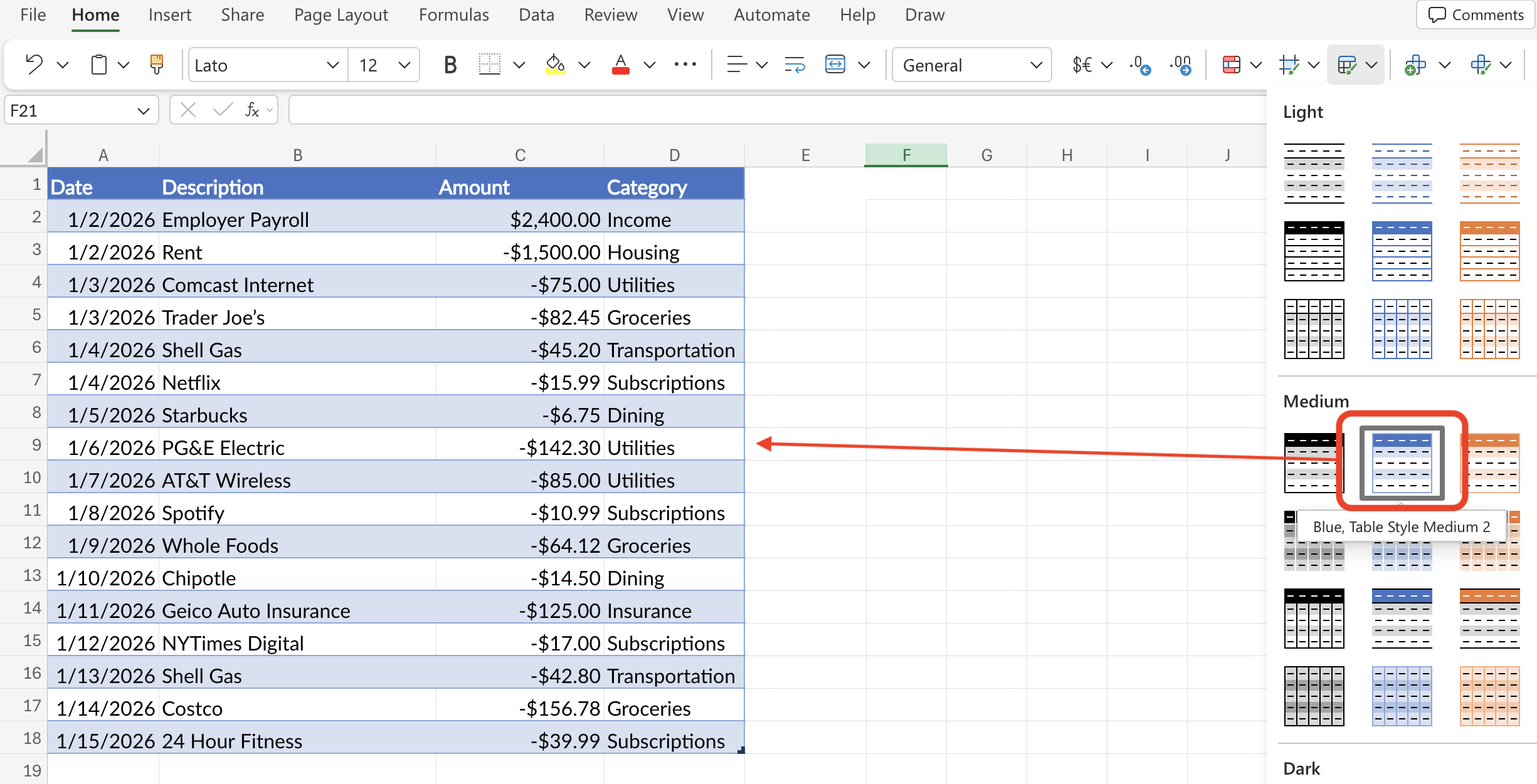
In Excel, we can also use the Format as Table feature to make the data easier to read.1 You can select a color/style for your table and it will automatically update the data.

Format as table

Format as table

4 Subscription Opportunity Cost

A small recurring subscription has a large long-run cost when you account for what the money could have earned.

Formula: Monthly Cost × 12 × ((1 + r)^n − 1) ÷ r

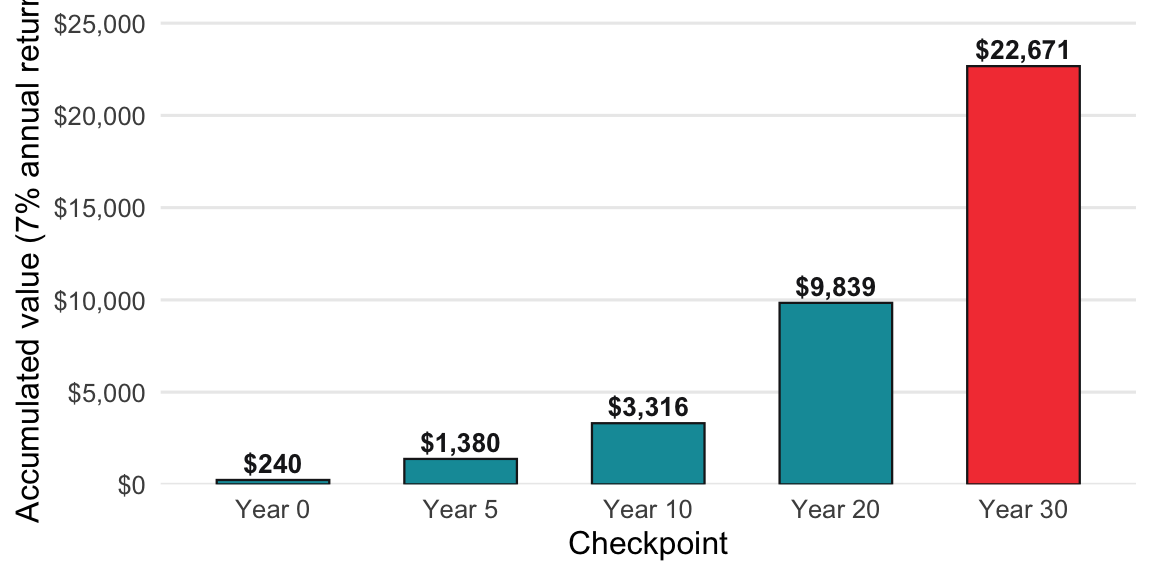
Future value of a $20/month subscription’s annual cost if invested at 7%

Future value of a $20/month subscription’s annual cost if invested at 7%

Note the rate is given as a decimal and the order of operations.

show/hide
subscription_opportunity_cost <- function(monthly_cost, years, rate = 0.07) {
  annual_cost <- monthly_cost * 12
  op_cost <- (annual_cost * ((1 + rate)^years - 1) / rate)
  fmt_dollar(op_cost)
}
show/hide
subscription_opportunity_cost(monthly_cost = 20, years = 30)
#> [1] "$22,670.59"

Note the exponential is indicated with ** (not ^). In Python, we store intermediate values explicitly before formatting; this makes the calculation steps transparent and easier to debug.

show/hide
def subscription_opportunity_cost(monthly_cost, years, rate=0.07):
    annual_cost = monthly_cost * 12
    op_cost = annual_cost * ((1 + rate) ** years - 1) / rate
    return fmt_dollar(op_cost) # format the result as a dollar amount
show/hide
subscription_opportunity_cost(monthly_cost=20, years=30)
#> '$22,670.59'

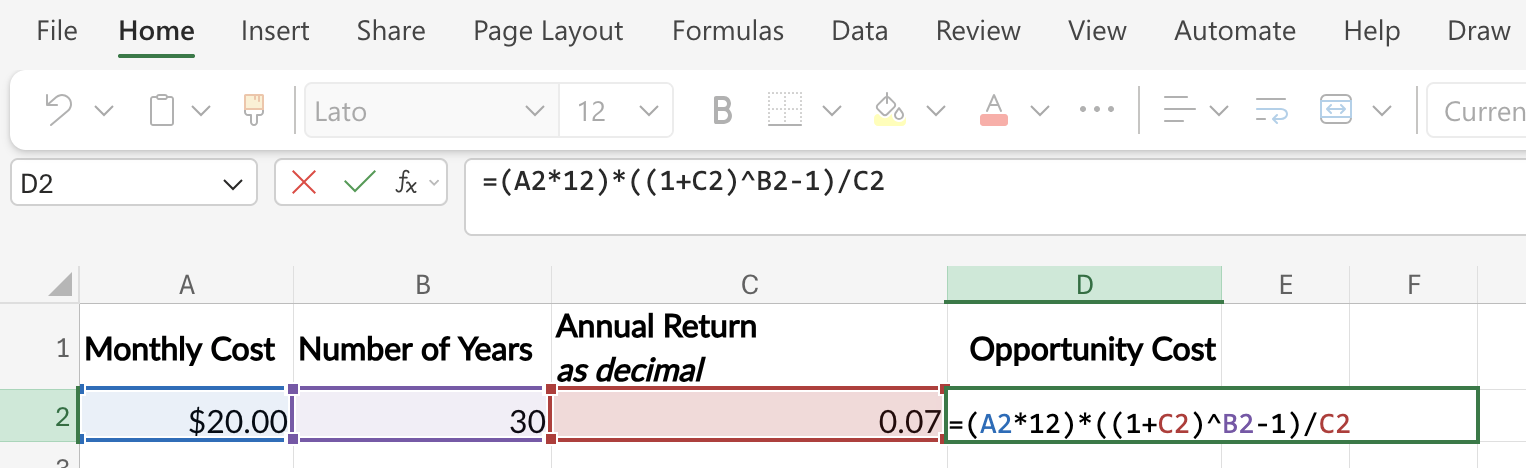
In Excel, create a new sheet with the inputs:

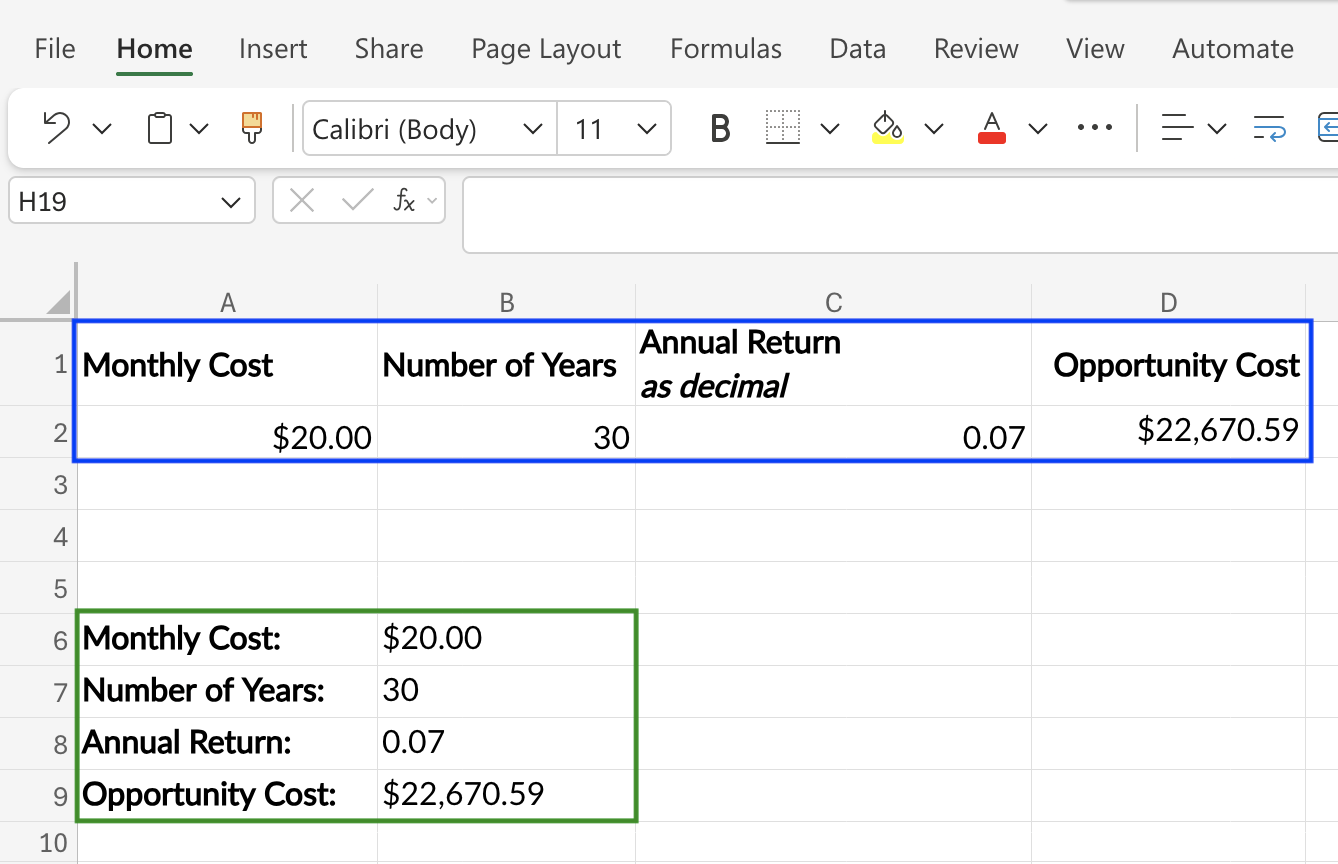
Monthly cost Number of Years Annual Return (as decimal) Opportunity Cost
$20 30 0.07 Formula below

The formula (given this setup) is below:

=(A2*12)*((1+C2)^B2-1)/C2

A2*12 converts the monthly cost to annual; the rest is the future-value-of-an-annuity formula using the rate in C2 and the horizon in B2. The formula (given this setup) is below:

Opportunity Cost in Excel

Opportunity Cost in Excel

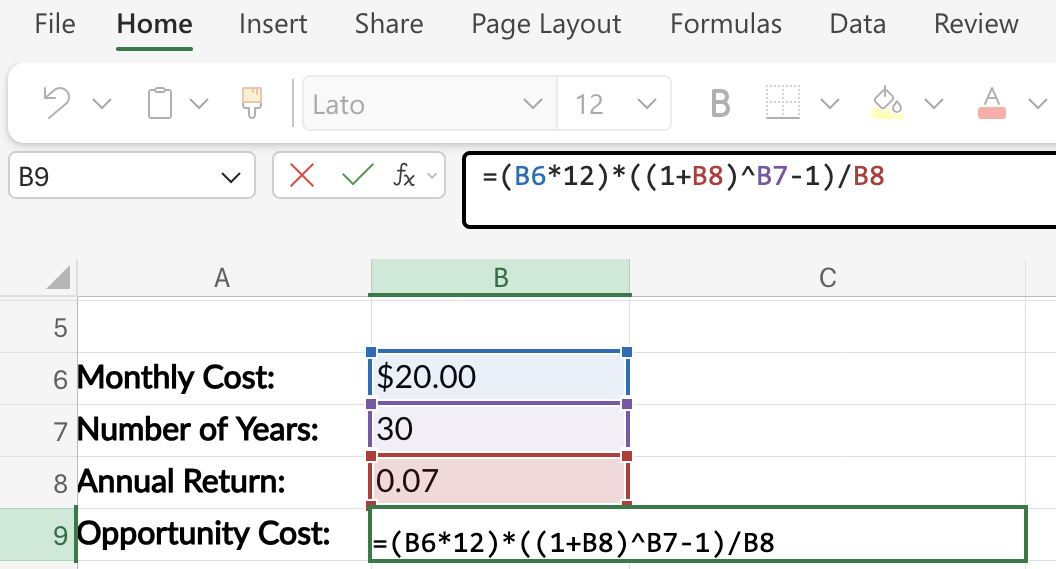
Note that if we had the data arranged differently, we’d have to adjust the formula accordingly:

Opportunity Cost 2 in Excel

Opportunity Cost 2 in Excel

Both will work, and for straightforward formulas like this, you can pick whichever one you prefer. Later, we’ll discuss how to arrange data in excel so it can be easily analyzed.

Opportunity Cost Layouts in Excel

Opportunity Cost Layouts in Excel

Footnotes

  1. Read the Overview of Excel tables on the Microsoft documentation.↩︎