%%{init: {'theme': 'neutral', 'themeVariables': { 'fontFamily': 'monospace', "darkMode":false, "fontSize":"16px"}}}%%

flowchart LR
    subgraph Income["<strong>INCOME</strong>"]
        Paycheck(["Paycheck"])
    end

    subgraph Allocation["<strong>ALLOCATION</strong><br>(First business day)"]
        Split1{{"Split across<br>accounts"}}
    end

    subgraph Accounts["<strong>YOUR ACCOUNTS</strong>"]
        Checking[("Checking Account<br>(Spending)")]
        HYSA[("High-Yield<br>Savings Account<br>(Savings goal)")]
        Retirement[("Retirement Account<br>(401k, IRA)")]
    end

    subgraph Guardrails["<strong>GUARDRAILS</strong>"]
        Automate[["Automatic transfers<br>set for day after<br>payday"]]
    end

    Paycheck --> Split1
    Split1 -->|"Your savings %"| HYSA
    Split1 -->|"401k contribution"| Retirement
    Split1 -->|"Remaining"| Checking

    Automate -.->|"Schedules"| Split1

    style Income fill:#0e9aa7,color:#FFFFFF,stroke:#1C1C1E,stroke-width:2px
    style Allocation fill:#f0cfcf,color:#1C1C1E,stroke:#1C1C1E,stroke-width:2px
    style Accounts fill:#FFFFFF,color:#1C1C1E,stroke:#1C1C1E,stroke-width:2px,rx:10
    style Guardrails fill:#86ddcd,color:#1C1C1E,stroke:#1C1C1E,stroke-width:2px
    style Checking fill:#f44242,color:#FFFFFF
    style HYSA fill:#48a56a,color:#FFFFFF
    style Retirement fill:#0e9aa7,color:#FFFFFF
8 Automating Savings
You now have a savings goal (from Savings Strategies) and a place to keep that money (from High-Yield Savings Accounts). The final step is making sure money actually flows there through automation instead of willpower. Of all the chapters in this section, this is the one I’d ask you not to skip.1
8.1 Why Automation Matters (the behavioral truth)
Most saving advice assumes you’ll make the right choice every month: see your paycheck, decide to save, move money to your HYSA. That doesn’t work. You’ll skip it when you’re tired. You’ll convince yourself “next month.” You’ll see the balance in your checking account and spend it.
Ramit Sethi’s Conscious Spending Plan solves this by flipping the order. Instead of spending first and saving what’s left, you save first and spend what remains. Automation makes this possible.
Once you set up automatic transfers, you stop deciding. The money leaves your account like rent or a phone bill: you don’t think about it. Your brain adapts to the money that’s actually there, and saving becomes effortless.
8.2 The Money Flow Diagram
Here’s how your paycheck should move, from the moment it hits your account to where it lives:
The important part is that money gets allocated as soon as it arrives. It doesn’t sit in your checking account waiting for you to decide. By the end of the first business day, your savings are already in a separate account, earning interest, and away from temptation.
8.3 Method 1: Payroll Direct Deposit Split (cleanest approach)
The cleanest automation happens before money hits your checking account. Most employers’ payroll systems let you split your direct deposit across multiple accounts.
Example: You earn $48,000 a year, so your gross pay (before taxes) is $4,000 a month, and your goal is a 20% savings rate ($800). Your 401(k) contribution is 5% of gross ($200, enough to get a typical employer match), which payroll takes out before taxes, so that part is already handled. Taxes and other deductions take about $700, which leaves $3,100 to deposit.
Your direct deposit setup would look like this:
- Direct Deposit Split #1: $600 → HYSA (the rest of your savings goal)
- Direct Deposit Split #2: $2,500 → Checking (your spending account)
The paycheck never sits in your checking account; the saving happens before you even see it.
How to set this up:
Log into your payroll/HR system (usually a portal like ADP, Gusto, or your company’s internal system)
Find “Direct Deposit” or “Payment Options”
Add a new account destination:
- Account holder name
- Bank name (your HYSA’s bank)
- Account type (Savings)
- Routing number (from your HYSA welcome email or the bank’s website)
- Account number (from your HYSA welcome email)
Allocate a fixed amount or percentage
Submit and verify with your HR department
If your employer doesn’t support multiple direct deposits, move to Method 2.
8.4 Method 2: Automatic Bank Transfers (fallback approach)
If your employer only allows one direct deposit, set up an automatic transfer from your checking account to your HYSA. This is slightly less tidy (money sits in checking for a day) but works just as well.
How to set this up:
Log into your checking account’s website or app
Find “Transfers” or “Bill Pay” or “Automatic Transfers”
Click “Add Recurring Transfer” or “Schedule Transfer”
Fill in:
- To Account: Your HYSA’s routing and account numbers
- Amount: Your monthly savings goal (for example, $600)
- Frequency: Monthly
- Date: The day after payday (if paid on the 1st, schedule for the 2nd)
Save and verify with a test transfer
Most banks now offer templates. When you see “Transfer to external account,” select your HYSA and your bank will remember it for future transfers.
The transfer takes 1 to 2 business days. By day 3 after payday, your savings are in the HYSA, earning interest, and out of reach of impulse spending.
8.5 The “Pay Yourself First” Math
How much should you automate? Go back to Savings Strategies and check the target savings rate you picked.
If your goal is a 20% savings rate, picture the $4,000 gross monthly pay from the example above as one bar. A fifth of it gets carved off for savings before you ever see it; the rest is what you live on. (Here the rate is measured on gross pay, because 401(k) contributions come out before taxes.)
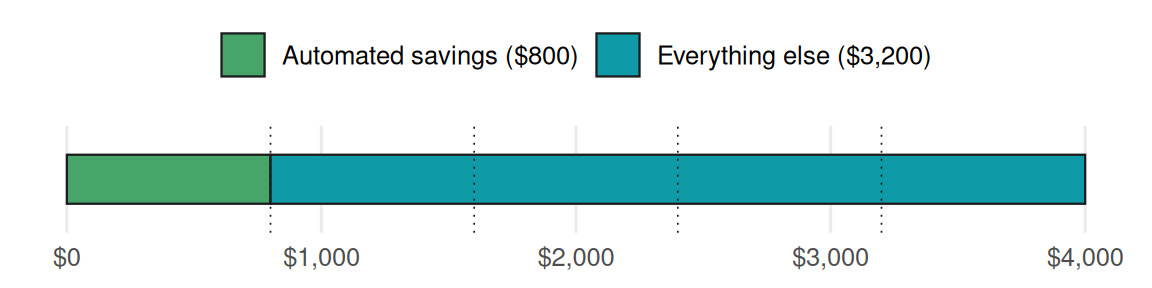
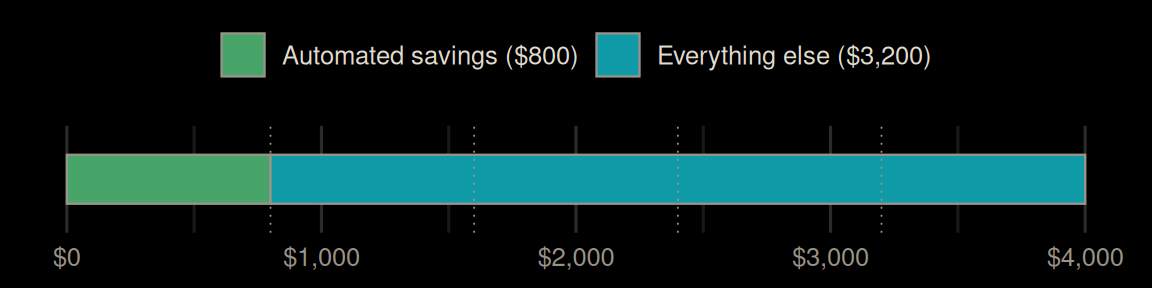
The dotted lines cut the bar into five equal fifths, and the green slice is one of them. Taking one fifth of the bar is the same as multiplying it by 0.20.
Formula: Monthly Savings Amount = Gross Monthly Income × Savings Rate
- Where: Gross Monthly Income = your pay before taxes, and Savings Rate = the share of it you plan to save, written as a decimal (20% = 0.20).
Example: $4,000 gross income → $4,000 × 0.20 = $800/month to automate.
Check: the bar has five slices of $800, and $800 × 5 = $4,000, so one slice is your savings.
Assuming gross monthly income is in A2 and the savings rate is in B2:
=A2 * B2show/hide
def monthly_savings(gross_monthly_income, savings_rate):
    return gross_monthly_income * savings_rate

# $4,000 gross monthly income, 20% savings rate
monthly_savings(gross_monthly_income=4000, savings_rate=0.20)
#> 800.0
show/hide
monthly_savings <- function(gross_monthly_income, savings_rate) {
  gross_monthly_income * savings_rate
}

# $4,000 gross monthly income, 20% savings rate
monthly_savings(gross_monthly_income = 4000, savings_rate = 0.20)
#> [1] 800
In practice, you’ll probably be automating several categories at once:
| Destination | % of Income | Amount (on $4,000 gross) | Frequency |
|---|---|---|---|
| Emergency fund (until it’s full) | 10% | $400 | Monthly |
| Employer 401(k) match | 5% | $200 | Per paycheck (before taxes) |
| Sinking funds (car, gifts, maintenance) | 5% | $200 | Monthly |
That’s 20% total, split across purposes. Once the emergency fund is full, send its $400 to investing instead. Each one goes to the right account automatically.
8.6 Escalating Your Contributions: The Long Game
On day one, you automate 15% of income. By year three, you automate 20%. By year five, 25%. This works because you escalate with raises instead of cutting spending.
How to escalate:
Whenever you get a raise, commit to saving half of it. If your income goes from $50,000 to $52,000 (a $2,000 raise), automate an extra $1,000 a year to savings and keep the other $1,000 to spend.
This is the idea behind Save More Tomorrow, a program designed by the economists Richard Thaler and Shlomo Benartzi: commit now to saving a share of every future raise, so savings rise as income does. You never feel the savings squeeze because your baseline spending doesn’t increase.
Escalation timeline:
| Year | Income | Savings Rate | Monthly Automated | 30 Years of Saving That Amount (at 7% return) |
|---|---|---|---|---|
| 1 | $50,000 | 15% | $625 | ~$762k |
| 3 | $54,000 | 20% | $900 | ~$1.10M |
| 5 | $58,000 | 25% | $1,208 | ~$1.47M |
| 7 | $63,000 | 30% | $1,575 | ~$1.92M |
Notice that raising your savings rate by just 5 percentage points every two years (mostly paid for by raises) completely changes where you end up.
8.7 Troubleshooting: When Automation Fails
“The transfer hasn’t arrived yet”
Transfers between banks take 1 to 2 business days. If it’s been 2 days and the money hasn’t arrived, log into your HYSA’s account and check transaction history. If it shows pending, wait one more day. If it shows failed, check that the routing and account numbers were correct.
“I keep transferring back to spending”
That’s a sign your automated amount is too high. Reduce it by a quarter to a half and try again for a month. The goal is a savings rate you can keep up forever, not an ambitious one you abandon. Ramit Sethi’s principle applies here: a plan you stick with beats a perfect plan you don’t.
“My paycheck varies (gig work, commission, and so on)”
Calculate your average monthly income over the last 6 months. Automate a percentage of that, not a fixed dollar amount. If this month’s paycheck is higher, the extra stays in checking (bonus). If it’s lower, you might underfund slightly, but you’re still saving.
“I’m not sure if my HYSA is even getting funded”
Log into your HYSA weekly for the first month. Watch the balance grow. That visual confirmation builds the habit and proves the system works. After a month, you can stop checking and trust the automation.
8.8 Recap
- Automate everything. Your willpower is finite, but automation is permanent.
- Split your direct deposit if your employer allows it. That way, the money never sits in your checking account.
- If you can’t split it, schedule automatic bank transfers for the day after payday.
- Start with a savings rate you can live with (10% to 15%), not an ambitious one you’ll give up on.
- Escalate with raises, not with spending cuts. Half of every raise goes to savings, and the other half is yours to enjoy.
- Use separate banks or sub-accounts. They keep you from raiding your sinking funds for impulse spending.
- Check your HYSA weekly for the first month to build confidence. After that, trust the system.
Once your savings are automated, you’ve taken the hardest decision in personal finance (actually saving) off the table. The money flows on its own, your emergency fund grows, and your sinking funds fill up. Your only remaining job is to spend intentionally on what’s left.
Once the automation is running, we’ll look at where to send your surplus savings for long-term growth in Investing Basics.
Morgan Housel makes this point well: the difference between people who build wealth and people who don’t isn’t income or intelligence. It’s the ability to make good decisions automatic. Willpower is finite. Automation wins.↩︎