%%{init: {'theme': 'base', 'themeVariables': {'fontFamily': 'monospace'}}}%%

graph LR
    subgraph Build["<strong>Build</strong>"]
        DF("<strong>Dockerfile</strong>")
        Img("<strong>Docker Image</strong>")
        DF -->|"<code>docker<br>build</code>"| Img
    end

    subgraph Share["<strong>Share</strong>"]
        Reg["<strong>Docker<br>Registry</strong><br>(Docker Hub, GHCR)"]
        Img -->|"<code>docker<br>push</code>"| Reg
        Reg -->|"<code>docker<br>pull</code>"| Img
    end

    subgraph Run["<strong>Run</strong>"]
        Con("<strong>Docker<br>Container</strong>")
        Img -->|"<code>docker<br>run</code>"| Con
    end

    style Build fill:#fbf7ec,stroke:#5B8C5A,color:#1B2A41
    style Share fill:#fbf7ec,stroke:#2A6F77,color:#1B2A41
    style Run fill:#fbf7ec,stroke:#2A6F77,color:#1B2A41
    style DF fill:#5B8C5A,stroke:#000000,stroke-width:1px,color:#ffffff
    style Img fill:#D2562B,stroke:#000000,stroke-width:1px,color:#ffffff
    style Reg fill:#1B2A41,stroke:#000000,stroke-width:1px,color:#ffffff
    style Con fill:#2A6F77,stroke:#000000,stroke-width:1px,color:#ffffff
Lab 6: Demystifying Docker
Comprehension questions
The questions below come from the Demystifying Docker chapter.
Docker mental map
“Draw a mental map of the relationship between the following: Dockerfile, Docker Image, Docker Registry, Docker Container.”
- A Dockerfile is a plain-text recipe that describes exactly what goes into an image.
- Running
docker buildexecutes the Dockerfile instructions and produces a Docker Image (an immutable, layered snapshot of the filesystem and configuration). - Docker Images can be pushed to a Docker Registry (such as Docker Hub or GitHub Container Registry) for storage and sharing.
- Running
docker runon an image creates a Docker Container, a live, isolated process that uses the image as its read-only base.
The key distinction is that an image is static (it never changes after it is built) while a container is ephemeral (it runs, does work, and can be stopped and removed). Multiple containers can be created from the same image simultaneously, each isolated from the others.
Docker run flags
“When would you want to use each of the following flags for docker run? When wouldn’t you?
-p,--name,-d,--rm,-v”
| Flag | Use | Don’t Use |
|---|---|---|
-p <host>:<container> |
The container runs a service (API, Shiny app, database) that needs to be reachable from the host or network | The container does not expose a network service and runs entirely internally |
--name <name> |
You need to reference the container by name in other commands (docker logs, docker stop, docker exec), or when running multiple containers that need to find each other |
Running a quick one-off command where the auto-generated name is fine |
-d |
Running a long-lived background service (a web server, an API) where you want the terminal back immediately | You need to watch live output, or the container runs a short job and you want to see when it finishes |
--rm |
Short-lived, disposable jobs: running a script, rendering a document, or any task where you do not need to inspect the container afterward | Long-lived services you want to restart later, or when you may need to examine the stopped container to debug a failure |
-v <host_path>:<container_path> |
Persisting data beyond the container’s lifetime, sharing config files or secrets, or mounting code during development so changes are reflected without rebuilding | The container should be fully self-contained and stateless; mounting volumes couples the container to the host filesystem and can undermine reproducibility |
Dockerfile commands
“What are the most important Dockerfile commands?”
Every Dockerfile starts with FROM, which names the base image (e.g., FROM rocker/r-ver:4.5). All subsequent instructions build on top of it.
| Command | Purpose |
|---|---|
FROM |
Set the base image — always the first instruction |
RUN |
Execute shell commands during the build (install packages, create directories) |
COPY |
Copy files from the build context into the image |
WORKDIR |
Set the working directory for all subsequent RUN, COPY, CMD, and ENTRYPOINT instructions |
ENV |
Set environment variables available at both build time and runtime |
EXPOSE |
Document which port the container listens on (informational — does not publish the port) |
CMD |
Default command to run when the container starts; can be overridden at docker run |
ENTRYPOINT |
Main executable for the container; CMD provides its default arguments |
The two commands that most often cause confusion are CMD and ENTRYPOINT:
CMDis the default command and is easily replaced (docker run my-image Rscript other.R)ENTRYPOINTlocks in the executable so the container always behaves like that program (docker run my-api --port 8080passes--port 8080as arguments to the entrypoint)
For data science services, ENTRYPOINT is the right choice when the container should always start the API or app.
Docker Containers & Model APIs
This lab involves creating Docker containers for the APIs we created in R and Python in lab 2 (see my solutions here).
Docker setup
I’ll cover how to install/setup Docker desktop on the Pop!_OS 24.04 operating system because it wasn’t very clear from the online documentation.
Download the Docker Desktop
.debfrom docs.docker.com/get-docker.- Docker Desktop depends on
docker-ce-cli, which is not in the default Pop!_OS repos. Add Docker’s official APT repository before installing the.deb.
- Docker Desktop depends on
Install the following prerequisites
sudo apt install ca-certificates curl gnupg lsb-releaseAdd Docker’s GPG key:
sudo install -m 0755 -d /etc/apt/keyringscurl -fsSL https://download.docker.com/linux/ubuntu/gpg | sudo gpg --dearmor -o /etc/apt/keyrings/docker.gpgsudo chmod a+r /etc/apt/keyrings/docker.gpgAdd the Docker APT repository (use
ubuntu noblefor Pop!_OS 24.04):echo \ "deb [arch=$(dpkg --print-architecture) signed-by=/etc/apt/keyrings/docker.gpg] \ https://download.docker.com/linux/ubuntu noble stable" | \ sudo tee /etc/apt/sources.list.d/docker.list > /dev/nullsudo apt updateInstall Docker Desktop. This install may print a permission warning about
_apt— this is harmless and the install completes normally.sudo apt install ./Downloads/docker-desktop-amd64.debVerify the install and start Docker Desktop:
docker --version
# Docker version 29.6.0, build fb59821
systemctl --user start docker-desktop
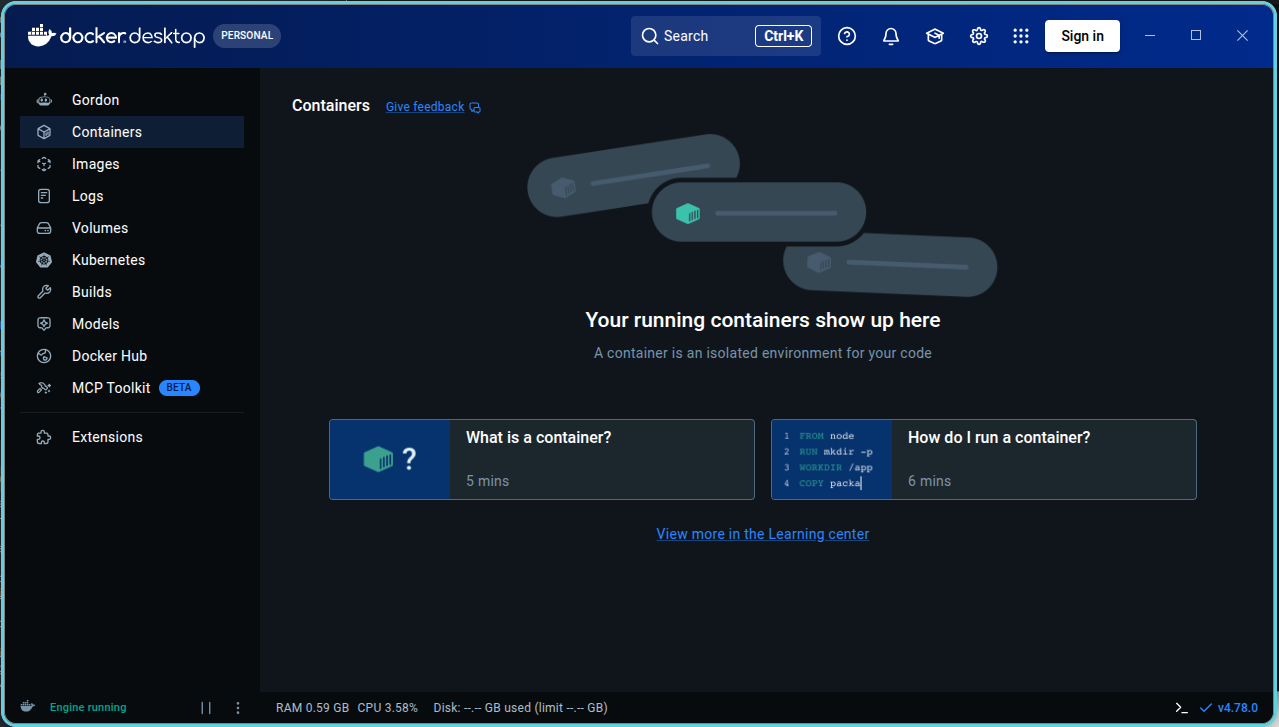
Signing in
On Linux, Docker Desktop uses pass (the GPG-based password store) as its credentials backend, storing your Docker ID token in GPG-encrypted files.1 Docker Desktop will show a warning and refuse to sign in if pass is not initialized first. This setup must happen before clicking Sign In in the UI.
Install
passandgpgif they are not already present:sudo apt install pass gpgGenerate a GPG key. Accept the defaults (RSA, 3072-bit) and enter a name and email when prompted:
gpg --generate-keyThe output includes a
pubblock; copy the long hex string on that line (the GPG key ID):pub rsa3072 2025-10-01 [SC] [expires: 2027-10-01] <pub-id> uid martin frigaard <mjfrigaard@pm.me> sub cv25519 2026-06-28 [E] [expires: 2029-06-27]Initialize
passwith the key ID:pass init <pub-id>Sign in from the Docker Desktop UI (Sign In button in the top-right) or from the Terminal:
docker loginDocker will prompt for your Docker ID username and password or token and store the credentials via
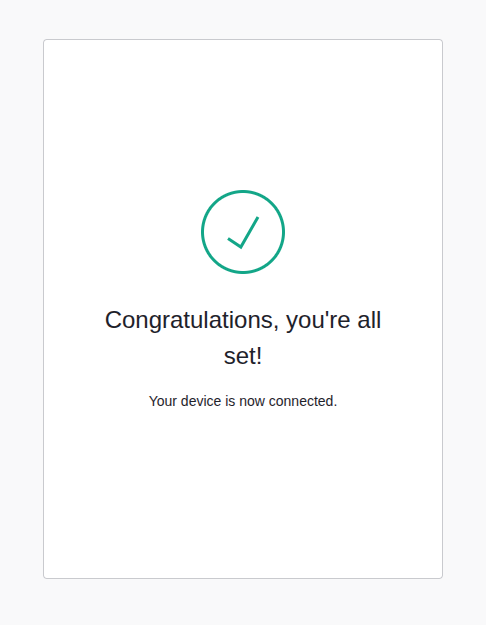
pass.USING WEB-BASED LOGIN i Info → To sign in with credentials on the command line, use 'docker login -u <username>' Your one-time device confirmation code is: ABCD-EFGH Press ENTER to open your browser or submit your device code here: https://login.docker.com/activate Waiting for authentication in the browser…After authentication is complete in the browser, you’ll see the following:
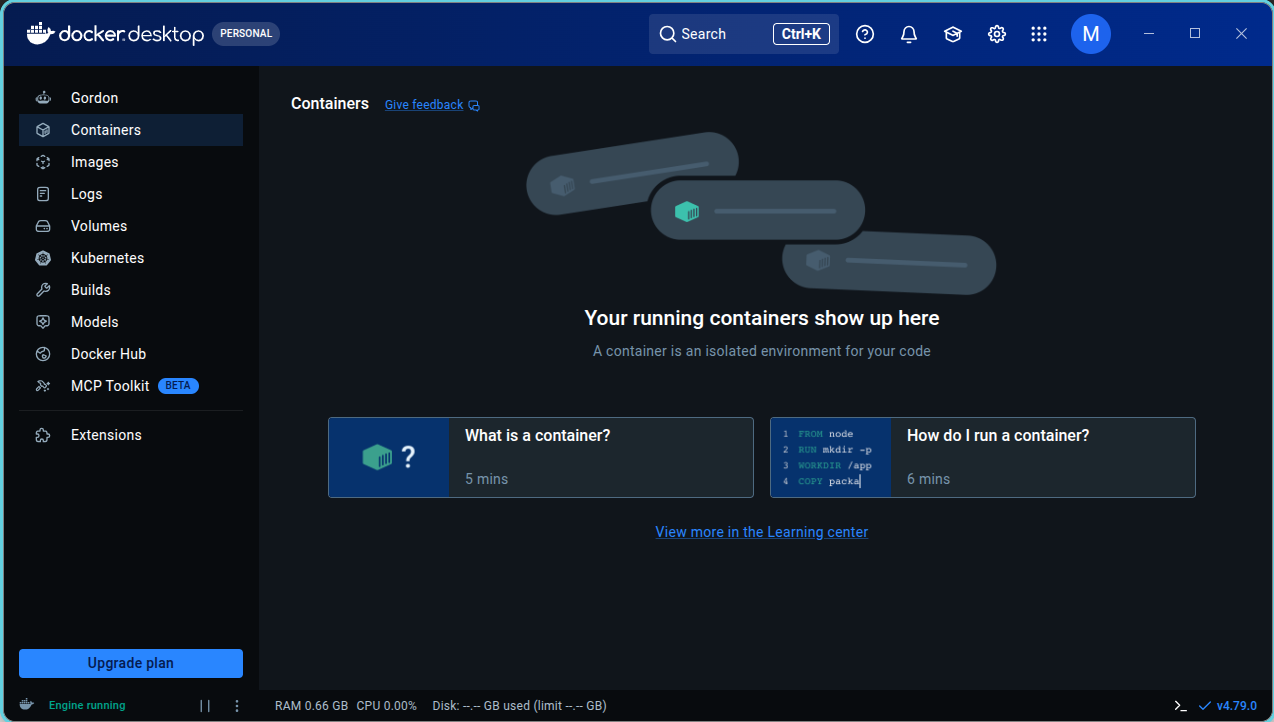
And docker desktop will indicate you’ve signed in:
Python
The Python API has been moved into _labs/lab06/Python/api:
lab06/Python/
└── api
    ├── api.Rproj
    ├── mod-api.py
    ├── model.py
    ├── models/
    │   └── penguin_model/
    │       └── 20251224T142035Z-c115b/
    ├── my-db.duckdb
    ├── README.md
    ├── requirements-api.txt
    └── requirements.txt

5 directories, 10 files
R
The R API has been moved into _labs/lab06/R/api:
lab06/R/
└── api
    ├── api.Rproj
    ├── model.R
    ├── models/
    │   └── penguin_model/
    │       └── 20251218T152129Z-74445/
    ├── my-db.duckdb
    ├── plumber.R
    ├── README.md
    ├── renv
    │   ├── activate.R
    │   ├── library/
    │   ├── settings.json
    │   └── staging
    └── renv.lock

9 directories, 9 files
gnome-keyring is not a supported alternative for Docker Desktop on Linux. It is available for Docker Engine via the
secretserviceD-Bus helper. That is a separate tool from Docker Desktop. See the credentials management documentation.↩︎