aws s3api create-bucket \
  --bucket penguin-vetiver-model-data \
  --region us-east-1 \
--profile dev-deployCreate S3 & Push/Pull Data
This is the third part of lab 7. It assumes you’ve set up your AWS group, user, configured the CLI, set up and launched an EC2 instance.
In this lab, we’ll create an S3 bucket and pushed the penguin vetiver model data.1
Creating S3 buckets
We can use the s3api command to create the S3 bucket for the penguin-vetiver-model-data.
These commands are pretty straightforward, but you can also read more in the documentation.2 Note that bucket names must be globally unique. The response from the API should be something like the following:
{
    "Location": "/penguin-vetiver-model-data",
    "BucketArn": "arn:aws:s3:::penguin-vetiver-model-data"
}
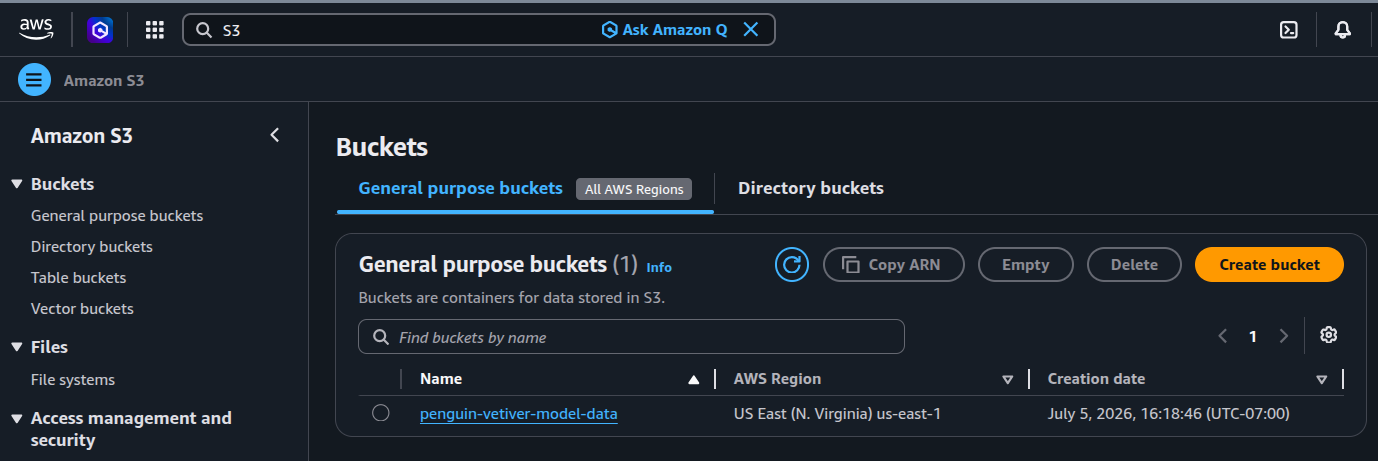
We can also see this in the dashboard by looking up S3 resources:
Pushing the models to S3
Now that we’ve created an S3 bucket, we can push the respective Python/R model data into their S3 locations. I’m going to keep the same Python/ and R/ folder structure, which I’ve displayed below:3
Python/
├── Dockerfile
├── mod-api.py
├── model.py
├── models/
│   └── penguin_model/
│       └── 20260618T104900Z-91fdd/
│           ├── data.txt
│           └── penguin_model.joblib
├── my-db.duckdb
├── README.md
├── requirements-api.txt
└── requirements.txt

4 directories, 9 files
R/
├── Dockerfile
├── model.R
├── models/
│ └── penguin_model/
│ └── 20260709T053628Z-09946/
│ ├── data.txt
│ └── penguin_model.rds
├── my-db.duckdb
├── plumber.R
├── README.md
├── renv/
└── renv.lock
10 directories, 10 filesPython model
From a Terminal in the do4ds-labs/_labs/lab07 folder:
aws s3 cp Python/models/ s3://penguin-vetiver-model-data/Python/models/ \
  --recursive \
  --profile dev-deploy
R model
From a Terminal in the do4ds-labs/_labs/lab07 folder:
aws s3 cp R/models/ s3://penguin-vetiver-model-data/R/models/ \
  --recursive \
  --profile dev-deploy
Copy vs. sync
It might make more sense to use sync instead of copy. sync only uploads new/changed files, which might be better for repeated deploys:
Python/:
aws s3 sync Python/models/ s3://penguin-vetiver-model-data/Python/models/ --profile dev-deployR/:
aws s3 sync R/models/ s3://penguin-vetiver-model-data/R/models/ --profile dev-deployVerify
The commands below will verify the model data has been put in the S3 bucket:
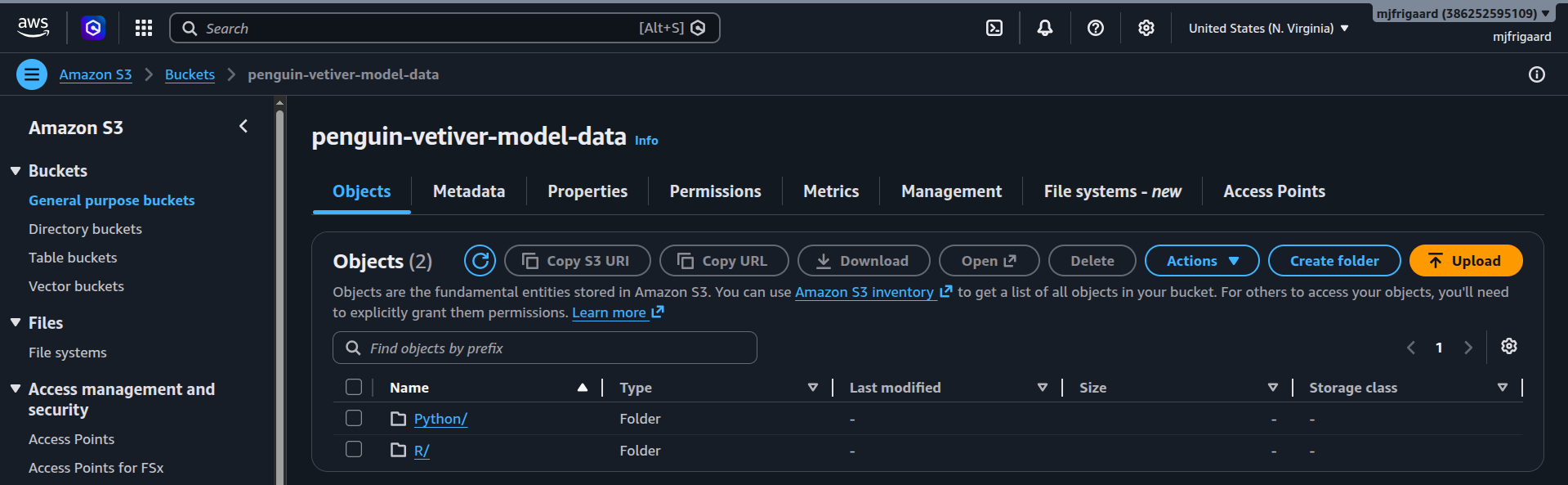
aws s3 ls s3://penguin-vetiver-model-data/ --recursive --profile dev-deployWe can also see the Python/ and R/ in the dashboard under Amazon S3 > Buckets
Pushing model data
I’ve create a Quarto documents for each respective R and Python vetiver model:
The model data can be written to either a local folder (for development) or directly to S3 (for production/CI/CD). The code snippets below show how to implement both approaches.
%%{init: {'theme': 'base', 'themeVariables': {'fontFamily': 'monospace'}}}%%

graph LR
    Model["Trained Model<br/>(py_model.py, r_model.R)"]
    Check["Check USE_S3<br/>Environment Variable"]
    Model --> Check

    Check -->|USE_S3=false| Local["Write to<br/>Local Folder"]
    Check -->|USE_S3=true| S3["Write to<br/>S3 Bucket"]

    Local --> LocalBoard["board_folder()"]
    S3 --> S3Board["board_s3()"]

    LocalBoard --> LocalPath["models/penguin_model/"]
    S3Board --> S3Path["s3://penguin-vetiver-model-data/<br/>Python|R/models/"]

    style Model fill:#5B8C5A,stroke:#000000,stroke-width:1px,color:#ffffff
    style Check fill:#E8A33D,stroke:#000000,stroke-width:1px,color:#ffffff
    style Local fill:#1B2A41,stroke:#000000,stroke-width:1px,color:#ffffff
    style S3 fill:#2A6F77,stroke:#000000,stroke-width:1px,color:#ffffff
    style LocalBoard fill:#D2562B,stroke:#000000,stroke-width:1px,color:#ffffff
    style S3Board fill:#D2562B,stroke:#000000,stroke-width:1px,color:#ffffff
    style LocalPath fill:#5B8C5A,stroke:#000000,stroke-width:1px,color:#ffffff
    style S3Path fill:#5B8C5A,stroke:#000000,stroke-width:1px,color:#ffffff
To push the vetiver model data when it rebuilds, we will have to adapt the ’Write to Local Board` sections:
Write to Local Board (Python)
The original code for writing the model out to a local directory in Python is below:4
from pins import board_folder
from vetiver import vetiver_pin_write

board = board_folder("Python/models", allow_pickle_read=True)
vetiver_pin_write(board, v)
We can see the confirmation that the model was written to the local board:
Model Cards provide a framework for transparent, responsible reporting.
 Use the vetiver `.qmd` Quarto template as a place to start,
 with vetiver.model_card()
Writing pin:
Name: 'penguin_lab07_model'
Version: 20260710T065219Z-91fdd
Write to S3 Bucket (Python)
To write this model data to the S3 bucket, we’ll need to make the following changes:
from dotenv import load_dotenv
import os
from pins import board_s3, board_folder
from vetiver import vetiver_pin_write

load_dotenv()

if os.getenv("USE_S3") == "true":
    board = board_s3(
        path="penguin-vetiver-model-data/Python/models",
        allow_pickle_read=True
    )
else:
    board = board_folder("Python/models", allow_pickle_read=True)

vetiver_pin_write(board, v)
Model Cards provide a framework for transparent, responsible reporting.
Use the vetiver `.qmd` Quarto template as a place to start,
with vetiver.model_card()
Writing pin:
Name: 'penguin_lab07_model'
Version: 20260710T065220Z-91fddWe can confirm it was uploaded with:
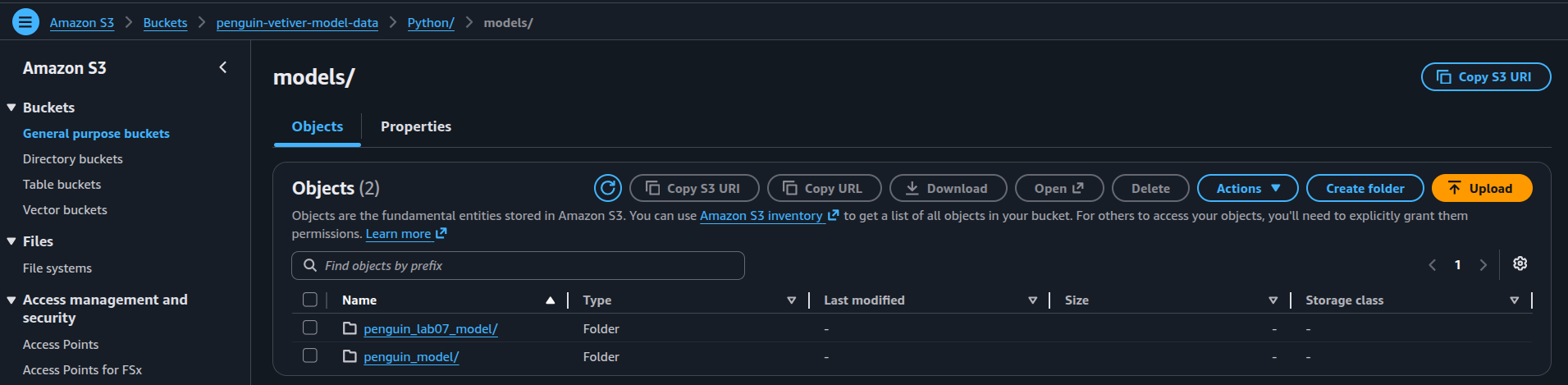
print(board.pin_list())['penguin_lab07_model', 'penguin_model']We can see the Python model data has been pushed to the S3 bucket in the AWS Console:
 {width=‘100%’ fig-align’center’}
Write to Local Board (R)
In r_model.qmd, we use the following to write the model data to a local board:5
model_board <- pins::board_folder("R/models")
vetiver::vetiver_pin_write(model_board, v)
We can see the confirmation that the model was written to the local board:
#> Creating new version '20260710T152331Z-09946'
#> Writing to pin 'penguin_lab07_model'
#>
#> Create a Model Card for your published model
#> • Model Cards provide a framework for transparent, responsible reporting
#> • Use the vetiver `.Rmd` template as a place to start
Write to S3 Bucket (R)
To write the vetiver model data to the S3 bucket using R, use the following:
You might need the paws.storage package installed to write to the S3 board. Install it with the following command:
# install.packages("paws.storage")Create a connection to the S3 bucket using the USE_S3 environment variable:
if (Sys.getenv("USE_S3") == "true") {
  board <- pins::board_s3(
    bucket = "penguin-vetiver-model-data",
    prefix = "R/models/",
    region = Sys.getenv("AWS_REGION", "us-east-1")
  )
} else {
  board <- pins::board_folder("R/models")
}

vetiver::vetiver_pin_write(board, v)
#> Creating new version '20260710T152331Z-09946'
#> Writing to pin 'penguin_lab07_model'We can confirm this with pins::pin_list():
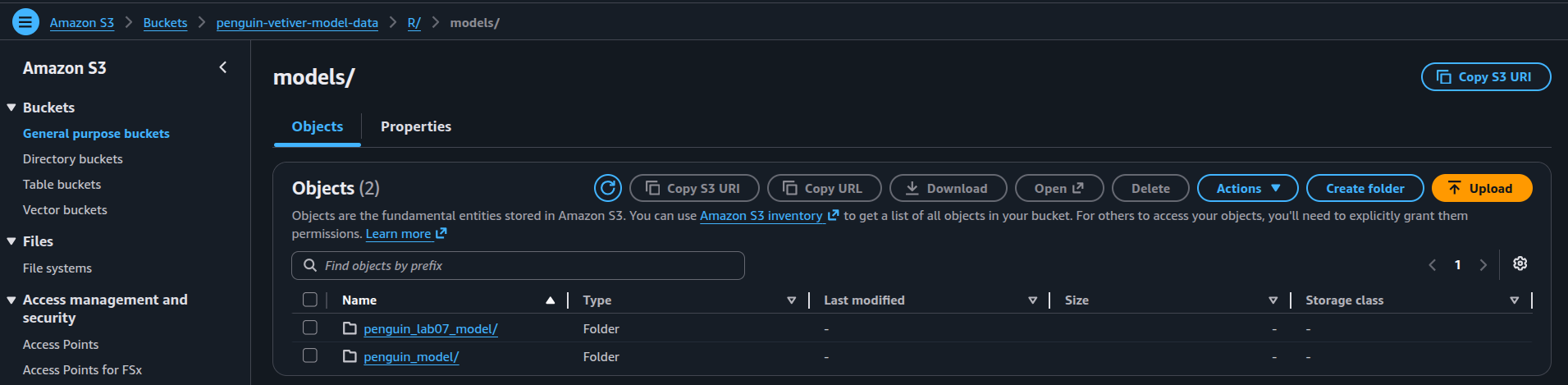
pins::pin_list(s3_board)#> [1] "penguin_lab07_model" "penguin_model"We can see this model data has been pushed in the AWS Console:
 {width=‘100%’ fig-align’center’}
Pulling model data from S3
Once the models are in S3, our APIs can load them directly using USE_S3 approach. This is especially useful when running on EC2 instances with IAM roles that have S3 read access.
%%{init: {'theme': 'base', 'themeVariables': {'fontFamily': 'monospace'}}}%%

graph TD
    API["API Startup<br/>(mod-api.py, plumber.R)"]
    Check["Check USE_S3<br/>Environment Variable"]
    API --> Check

    Check -->|USE_S3=false| Local["Load from<br/>Local Folder"]
    Check -->|USE_S3=true| S3["Load from<br/>S3 Bucket"]

    Local --> LocalBoard["board_folder()"]
    S3 --> S3Board["board_s3()"]

    LocalBoard --> LocalPath["models/penguin_model/"]
    S3Board --> S3Path["s3://penguin-vetiver-model-data/<br/>Python|R/models/"]

    LocalPath --> Ready["Model Ready<br/>to Serve"]
    S3Path --> Ready

    style API fill:#5B8C5A,stroke:#000000,stroke-width:1px,color:#ffffff
    style Check fill:#E8A33D,stroke:#000000,stroke-width:1px,color:#ffffff
    style Local fill:#1B2A41,stroke:#000000,stroke-width:1px,color:#ffffff
    style S3 fill:#2A6F77,stroke:#000000,stroke-width:1px,color:#ffffff
    style LocalBoard fill:#D2562B,stroke:#000000,stroke-width:1px,color:#ffffff
    style S3Board fill:#D2562B,stroke:#000000,stroke-width:1px,color:#ffffff
    style LocalPath fill:#5B8C5A,stroke:#000000,stroke-width:1px,color:#ffffff
    style S3Path fill:#5B8C5A,stroke:#000000,stroke-width:1px,color:#ffffff
    style Ready fill:#5B8C5A,stroke:#000000,stroke-width:1px,color:#ffffff
Both the Python and R APIs support loading models from S3 by setting the USE_S3 environment variable. When running on an EC2 instance with the ec2-s3-instance-profile IAM role attached, the instance automatically has temporary AWS credentials to access S3 without needing to store any keys.
Python Configuration
The Python API (mod-api.py) checks for S3 configuration:
from dotenv import load_dotenv
import os
from pins import board_s3, board_folder

load_dotenv()

if os.getenv("USE_S3") == "true":
    board = board_s3(
        path="penguin-vetiver-model-data/Python/models",
        allow_pickle_read=True
    )
else:
    board = board_folder(os.getenv("MODEL_PATH", "Python/models"), allow_pickle_read=True)

model = board.pin_read("penguin_lab07_model")

print(f"Model type: {type(model)}")
print(f"Model loaded successfully from {'S3' if os.getenv('USE_S3') == 'true' else 'local'}")
Model type: <class 'sklearn.linear_model._base.LinearRegression'>
Model loaded successfully from S3R Configuration
The R API (plumber.R) checks for S3 configuration:
if (Sys.getenv("USE_S3") == "true") {
  model_board <- pins::board_s3(
    bucket = "penguin-vetiver-model-data",
    prefix = "R/models/",
    region = Sys.getenv("AWS_REGION", "us-east-1")
  )
} else {
  model_path <- Sys.getenv("MODEL_PATH", unset = "R/models")
  model_board <- pins::board_folder(model_path)
}

model <- vetiver::vetiver_pin_read(model_board, "penguin_lab07_model")

cat("Model type:", class(model$model)[1], "\n")
#> Model type: butchered_lmcat("Model loaded successfully from",
if(Sys.getenv("USE_S3") == "true") "S3" else "local", "\n")#> Model loaded successfully from S3Environment variables
In both files, USE_S3 is set to "true" to load from S3, and the MODEL_PATH variable can be a used for a custom local folder path for development or testing with different model locations (other than "models/").
Running on EC2
When the EC2 instance boots with the ec2-s3-instance-profile role attached, it automatically has temporary credentials to access S3. Simply set the USE_S3 environment variable and the API will load from S3:
Python:
export USE_S3=true
python mod-api.py
R:
export USE_S3=true
Rscript plumber.R
The instance’s IAM role provides temporary AWS credentials automatically, so no static keys need to be stored on the server.
If you haven’t completed these steps, please see Getting started with AWS and EC2 Buckets↩︎
Read more about creating S3 buckets in Creating a general purpose bucket↩︎
These are the code files from lab 4.↩︎
View original ‘Write to Local Board’ Python section.↩︎
View original ‘Write to Local Board’ R section.↩︎