%%{init: {'theme': 'base', 'themeVariables': { 'fontFamily': 'monospace', "fontSize":"16px", "darkMode":false}}}%%

flowchart TD
    subgraph Server["<strong>Server-based Shiny</strong>"]
        B1(["Browser"]) <-->|"inputs and outputs"| R1("R process on a server<br>runs <code>launch_app()</code>")
    end
    subgraph Live["<strong>shinylive</strong>"]
        H1["Static file host"] -->|"i. download app files"| B2(["Browser"])
        B2 -->|"ii. start"| W1("webR inside the browser<br>runs the app")
    end

    style Server fill:#FFFFFF,color:#000000,stroke:#333,stroke-width:1px,rx:10,ry:10
    style Live fill:#FFFFFF,color:#000000,stroke:#333,stroke-width:1px,rx:10,ry:10
    style R1 fill:#4CBB9D,color:#FFFFFF,rx:5,ry:5
    style W1 fill:#4CBB9D,color:#FFFFFF,rx:5,ry:5
22 webR
Every deployment we’ve covered so far needs a server running R. Posit Connect Cloud runs R for us (Chapter 19). Docker packages R into a container (Chapter 20), and GitHub Actions builds and ships it (Chapter 21). In this chapter we’ll remove the server entirely and use webR and shinylive to run our app-package in the user’s browser.
22.1 What is webR?
webR is a version of R that runs in a web browser. It’s compiled to WebAssembly, a binary format that modern browsers run at near native speed. When a browser loads webR, the R session lives on the user’s machine, not on a server.
shinylive builds on webR. It packages a Shiny app, webR, and the app’s R packages into a folder of static files. A static file host is just a web server that hands out files without running any code (GitHub Pages and Netlify are common examples).
The diagram below compares a server-based deployment with a shinylive deployment:
In a server-based deployment, every click travels to the server and every plot travels back. In a shinylive deployment, the host only delivers the files. After the first download, the app runs without contacting a server at all.
22.1.1 Trade-offs
shinylive removes the server, but the browser takes on the server’s job. I’ve found these trade-offs matter most for app-packages:
First load: the browser downloads
webRand every package before the app appears, so the first visit takes longer than a server-based app.Visible code: all the app’s code and data are sent to the browser. Never put credentials, API keys, or private data in a
shinyliveapp.No system tools:
webRcan’t call programs installed on a computer. Features that rely on the Quarto CLI orsystem()calls won’t work.No downloads from R:
webRcan’t download files from inside R.sass::font_google()downloads font files by default, so abslibtheme that uses it fails with an error about thecurlpackage. Usesass::font_google("Ubuntu", local = FALSE)so the browser loads the font instead.Temporary files:
webRwrites files to a virtual file system in browser memory. Log files written withloggerdisappear when the user closes the tab.
22.2 Which packages run in webR?
webR can’t install packages from source. Every package an app uses needs a precompiled WebAssembly binary. The webR project hosts thousands of these binaries in a CRAN-like repository at https://repo.r-wasm.org.
Before we export anything, we should confirm that each package in our Imports field has a binary. The code below reads the DESCRIPTION file and compares it to the packages in the webR repository:
wasm_pkgs <- available.packages(
  contriburl = "https://repo.r-wasm.org/bin/emscripten/contrib/4.6"
)
base_pkgs <- rownames(installed.packages(priority = "base"))
imports <- read.dcf("DESCRIPTION", fields = "Imports")
imports <- trimws(strsplit(imports, ",")[[1]])
imports <- imports[imports != ""]
setdiff(imports, c(rownames(wasm_pkgs), base_pkgs))
Base packages (like tools) ship with webR, so we remove them before we compare. An empty result means every dependency has a binary:
character(0)The 4.6 in the URL refers to the version of R that webR is built on. Check the webR documentation for the current version if this URL stops working.
22.3 A WebAssembly binary for sap
Our dependencies are covered, but sap itself isn’t on CRAN, so it has no binary in the webR repository. We need a service that builds one for us. R-universe is a free service from rOpenSci that builds R packages from GitHub. It builds a WebAssembly binary of every package it hosts.
To set up a personal universe:
Create a GitHub repository named
<username>.r-universe.dev(for this book, I usedmjfrigaard.r-universe.dev).Add a
packages.jsonfile that lists each package and the repository it comes from.Install the R-universe GitHub app on your account.
The packages.json file below adds sap to the universe. The branch field tells R-universe to build from the 22_webr branch instead of the default branch:
[
  {
    "package": "sap",
    "url": "https://github.com/mjfrigaard/sap",
    "branch": "22_webr"
  }
]
22.3.1 Installing the R-universe GitHub app
The packages.json file only lists our packages. Nothing builds until we install the R-universe GitHub app, which tells R-universe to create the universe and watch the repositories in it.
Choose the personal account (or organization) that owns the
<username>.r-universe.devrepository.Under “for these repositories,” choose All repositories or Only select repositories. If you pick select repositories, include the
<username>.r-universe.devrepository.Review the permissions (read access to metadata, and read and write access to commit statuses), then click Install.
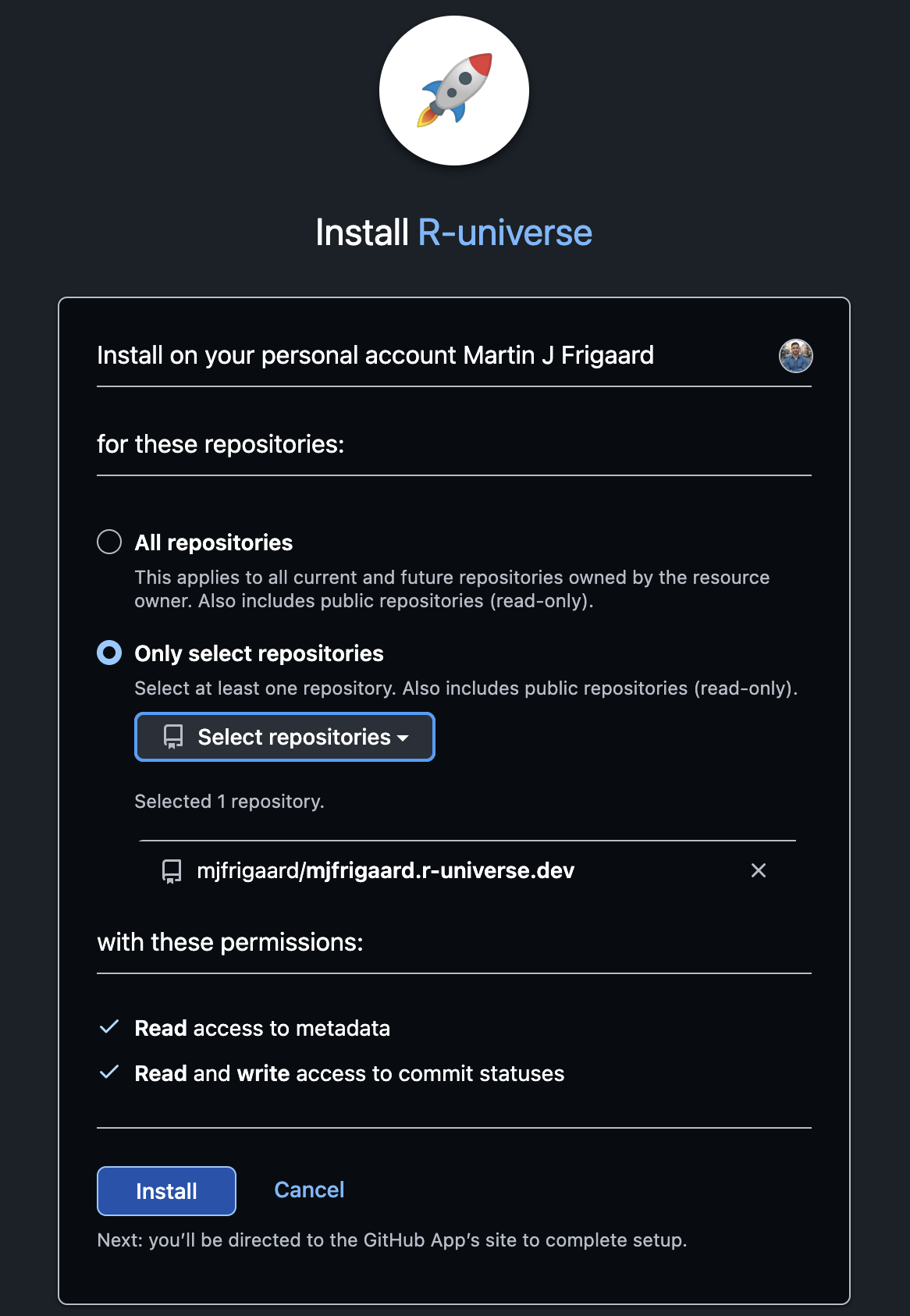
The app needs read access to the package repositories as well. Public repositories like sap are readable either way, but R-universe only posts build status checks to repositories the app is installed on. Add the package repository to the selection if you want those checks on your commits.
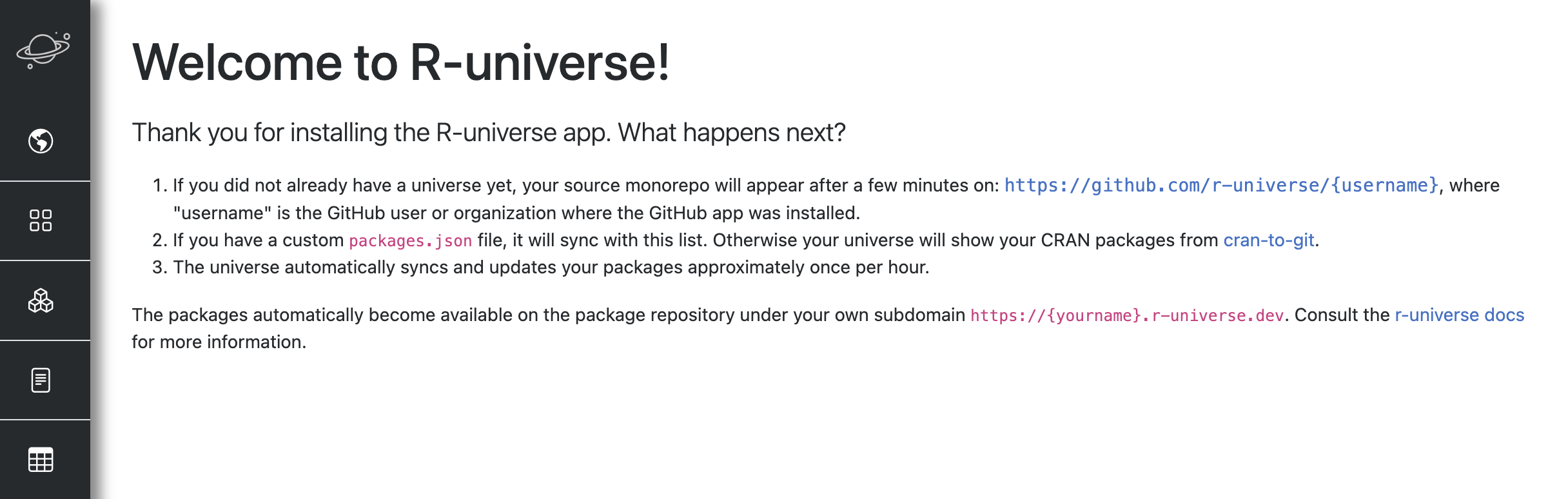
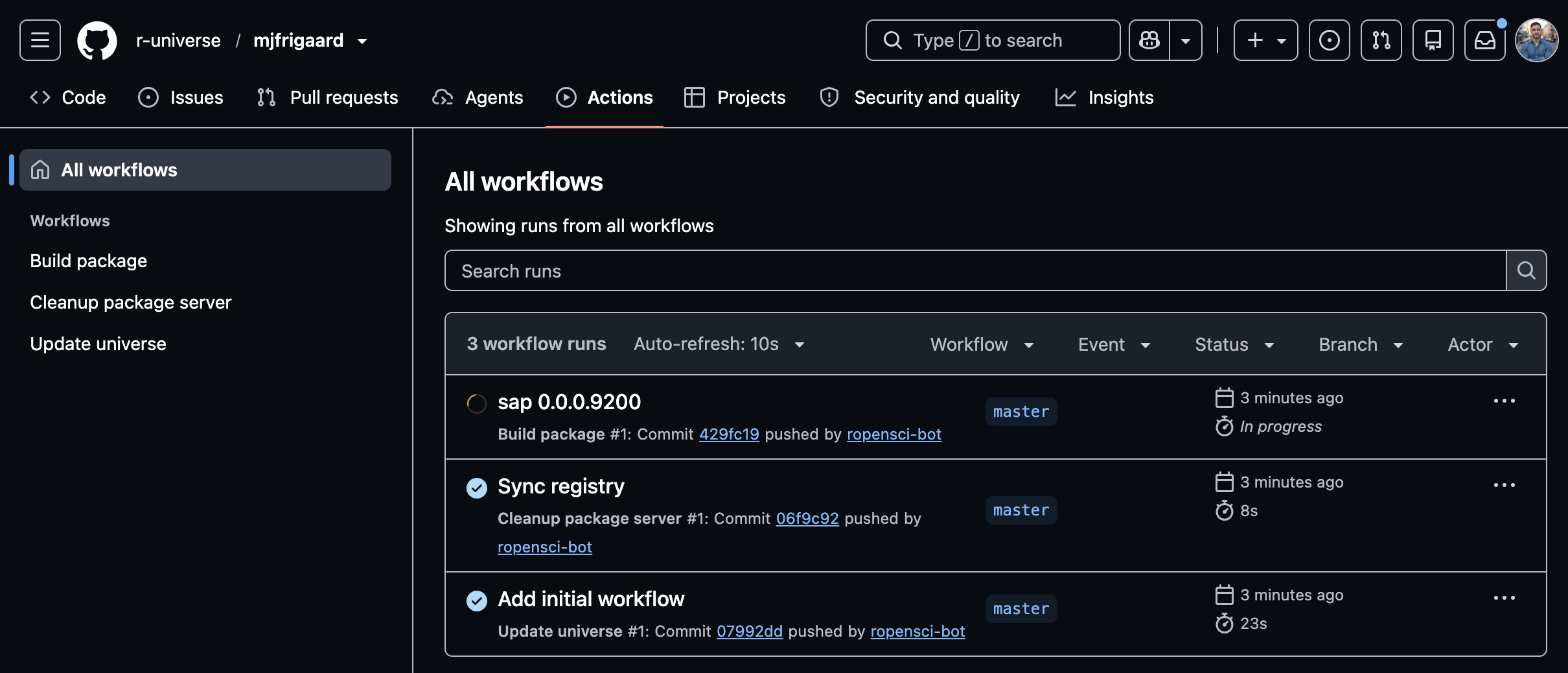
After the app is installed, R-universe creates a build repository at github.com/r-universe/<username> (for this book, https://github.com/r-universe/mjfrigaard). The first build usually finishes within an hour. We can follow its progress in the Actions tab of that repository (https://github.com/r-universe/mjfrigaard/actions). When the build succeeds, the package appears at https://<username>.r-universe.dev.
On the first run, the Actions tab lists three workflows. Update universe and Cleanup package server set up the universe and sync it with packages.json, and Build package builds sap (including the WebAssembly binary):
sap22.3.2 Installing sap from R-universe
R-universe rebuilds the package (and its WebAssembly binary) each time we push to that branch. When the build finishes, we install sap from the universe instead of from our local source files:
install.packages(
  "sap",
  repos = c("https://mjfrigaard.r-universe.dev", getOption("repos"))
)
22.3.3 Why install from R-universe?
Installing from R-universe matters because shinylive bundles the packages installed on our machine. The installed package records where it came from, and shinylive uses that record to download the matching WebAssembly binary.
22.4 The shinylive launcher
shinylive exports an app directory (a folder with an app.R file), not a package. We’ll add a small launcher app in inst/webr/ that loads sap and returns the application:
Launch app with the shinypak package:
launch('22_webr')library(shiny)
library(sap)
shinyApp(
ui = movies_ui(bslib = TRUE),
server = movies_server
)This file calls movies_ui() and movies_server() directly instead of launch_app(). launch_app() calls shiny::runApp(), which starts a server and blocks the R session. shinylive expects app.R to return a Shiny app object and handles the rest itself.
The library(sap) call also does a second job. shinylive scans app.R for library() calls to decide which packages to bundle. It finds sap, then bundles the binaries for sap and each of its dependencies.
22.5 Exporting the app
We’ll store the export code in dev/webr.R. The dev/ folder is already listed in .Rbuildignore, so the script won’t end up in the built package. shinylive::export() converts the launcher into a static site in _site/:
shinylive::export(appdir = "inst/webr", destdir = "_site")The export downloads the shinylive assets the first time it runs, so the first export takes a few minutes. Later exports reuse the cached assets.
We can preview the site with httpuv::runStaticServer(). Opening _site/index.html directly in a browser won’t work, because webR needs the files served over HTTP:
httpuv::runStaticServer("_site")The app should look the same as the version we launch with launch_app(app = "bslib"). We can confirm that R is running in the browser by opening the browser’s developer tools. The Network tab lists the webR and package files as they download.
We’ve also added _site/ to .gitignore. The exported site is a build artifact, so we rebuild it from source rather than tracking it in Git.
22.5.1 Publishing the site
Any static file host can serve the _site/ folder. GitHub Pages is a common choice. We can build and deploy the site with a workflow like the ones in Chapter 21. A repository has only one GitHub Pages site, and we’ll use the sap site for the package website in Chapter 24. If you want both, deploy the shinylive app from a separate repository.
Recap
webR and shinylive move our app-package from a server into the user’s browser. The trade-off is a slower first load and code that’s visible to every user.
In the next chapter we’ll package the same app as a desktop application with shinyelectron, which can also use shinylive to run without R installed.